
























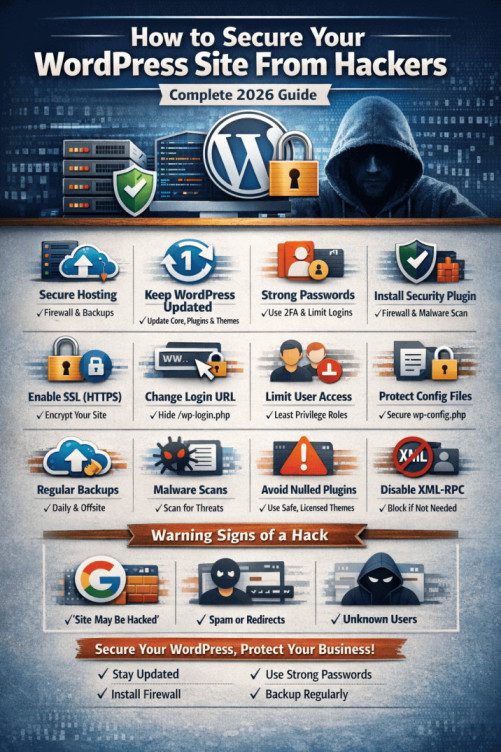
How to Secure Your WordPress Site From Hackers
WordPress powers over 40% of the internet, which also makes it the #1 target for hackers. From brute-force login attacks to malware injections and data theft, unsecured WordPress sites are constantly under threat.
The good news?
Most WordPress hacks are 100% preventable if you follow the right security practices.
This guide explains how hackers attack WordPress and gives you step-by-step, beginner-friendly actions to fully secure your site in 2026.
Why WordPress Sites Get Hacked
Hackers don’t usually target you personally. They use bots that scan millions of sites looking for easy entry points like:
- Weak passwords
- Outdated plugins & themes
- Poor hosting security
- No firewall or malware protection
Once inside, attackers can:
- Inject spam links
- Redirect traffic
- Steal user data
- Blacklist your site on Google
- Use your server for phishing or crypto mining
1. Use Secure & Reliable WordPress Hosting
Security starts at the hosting level.
A good host protects you with:
- Server-level firewalls
- Malware scanning
- DDoS protection
- Automatic backups
What to Look For:
- Free SSL certificates
- Isolated accounts
- Regular security patching
- Daily backups
👉 Cheap shared hosting often leads to shared vulnerabilities.
2. Always Keep WordPress Updated
Outdated software is the #1 cause of WordPress hacks.
You must keep updated:
- WordPress core
- Themes
- Plugins
Best Practices:
- Enable auto-updates for minor releases
- Delete unused themes & plugins
- Avoid nulled (pirated) plugins or themes
⚠️ One outdated plugin can compromise your entire site.
3. Use Strong Login Credentials (No Exceptions)
Weak passwords make brute-force attacks easy.
Secure Login Rules:
- Use a strong password (12+ characters)
- Never use
adminas your username - Limit login attempts
- Enable two-factor authentication (2FA)
Use a password manager to avoid reusing passwords across sites.
4. Install a WordPress Security Plugin
A security plugin acts like a bodyguard for your website.
Recommended Security Plugins:
- Wordfence
– Firewall + malware scanner - Sucuri
– Cloud-based firewall & cleanup - iThemes Security
– Login protection & hardening
Key Features to Enable:
- Web Application Firewall (WAF)
- Malware scanning
- Login protection
- File integrity monitoring
5. Enable SSL (HTTPS) on Your Site
SSL encrypts data between your site and visitors.
Why SSL Matters:
- Protects login credentials
- Prevents data interception
- Required for SEO & Google ranking
- Builds user trust
Most hosts offer free Let’s Encrypt SSL — activate it immediately.
6. Change the Default WordPress Login URL
Hackers automatically attack:
/wp-admin
/wp-login.php
Changing your login URL reduces automated attacks.
How to Do It:
- Use a security plugin
- Or a dedicated login URL changer plugin
This won’t stop targeted attacks, but it blocks 90% of bots.
7. Limit User Roles & Permissions
Every user doesn’t need admin access.
Best Practice:
- Admin: Only for site owners
- Editor: Content management
- Author: Write posts only
- Subscriber: Read-only
Remove inactive users and review permissions regularly.
8. Protect wp-config.php & .htaccess Files
These files control your entire WordPress site.
Security Tips:
- Restrict file permissions
- Disable file editing from dashboard
- Block public access to sensitive files
A security plugin can apply these rules automatically.
9. Set Up Regular Backups (Your Safety Net)
Even the best security can fail. Backups save you.
Backup Strategy:
- Daily automatic backups
- Store backups off-site (cloud)
- Test backups occasionally
Recommended backup plugins:
If hacked, you can restore your site in minutes.
10. Monitor & Scan Your Site Regularly
Early detection prevents major damage.
What to Monitor:
- File changes
- Malware alerts
- New admin users
- Traffic spikes
Enable email alerts in your security plugin so you know immediately if something goes wrong.
11. Avoid Free & Nulled Themes/Plugins
“Nulled” themes often include:
- Hidden backdoors
- Spam links
- Remote access scripts
They might work initially, but they silently destroy your site over time.
Always download from:
- WordPress.org
- Official developer websites
- Trusted marketplaces
12. Disable XML-RPC if You Don’t Need It
XML-RPC is often exploited for brute-force attacks.
If You Don’t Use:
- Jetpack
- Mobile WordPress apps
- External publishing tools
👉 Disable XML-RPC using a plugin or firewall rule.
Signs Your WordPress Site Is Hacked
Watch out for:
- Sudden traffic drop
- Spam links on your site
- Google “This site may be hacked” warning
- Unknown admin users
- Slow performance or redirects
If you see these, act immediately.
WordPress Security Is Not Optional
WordPress is secure by design, but only if you maintain it properly.
Security Checklist Recap:
- ✅ Secure hosting
- ✅ Regular updates
- ✅ Strong passwords & 2FA
- ✅ Firewall & malware scanning
- ✅ SSL encryption
- ✅ Daily backups
If your website matters to your business, security is an investment—not an option.


