























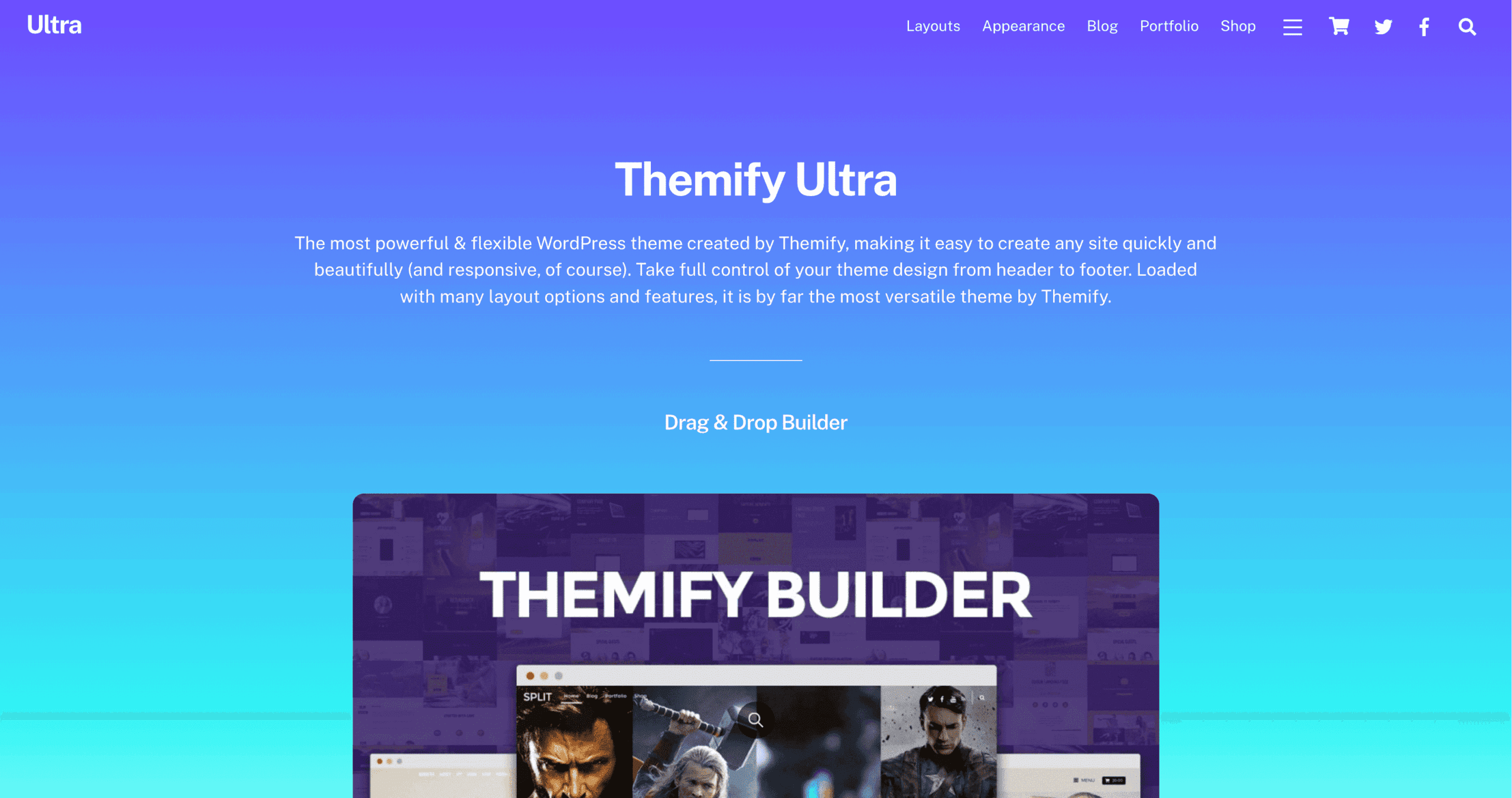
How to Create a Multilingual Website With Themify Ultra + WPML (Step-by-Step Guide)
🧭 Introduction
In today’s global web environment, reaching international audiences is crucial. If you’re using the Themify Ultra theme for your WordPress site, you’re already off to a great start. But how do you make your site multilingual?
In this guide, we’ll walk you through how to create a multilingual website using Themify Ultra and WPML, the most popular WordPress multilingual plugin. 🌍
🔧 Tools You’ll Need
-
WordPress site with Themify Ultra theme installed
-
WPML plugin (with WPML Multilingual CMS + String Translation modules)
-
Themify Builder (comes bundled with Ultra)
📌 Step 1: Install and Set Up WPML
-
Go to your WordPress dashboard → Plugins → Add New.
-
Upload and activate the WPML Multilingual CMS plugin.
-
Follow the setup wizard:
-
Choose your site’s default language.
-
Add the languages you want to support.
-
Choose how you want the language switcher to display (menu, widget, footer, etc.).
-
👉 Pro Tip: You can also customize the language switcher for mobile and desktop views for better UX.
🗂️ Step 2: Translate Input Text Using WPML
Some parts of your site—such as site tagline, footer text, contact forms, menu labels, and widgets—can’t be translated using the regular content editor. For these, you’ll use WPML’s String Translation module.
🔄 How to Translate Input Fields:
-
Go to WPML → String Translation.
-
Use the search bar to find any string (e.g., “Welcome to our store”).
-
Click on “+” icon next to the target language to add the translation.
-
Save it and it will auto-reflect on the site.
📌 Refer: Themify Docs – Translating Input Text with WPML
🎨 Step 3: Translate Themify Builder Content
If you’re building pages with Themify Builder, you’ll need to translate layouts and modules (like text, buttons, sliders, etc.).
✍ How to Translate Builder Content:
-
Make sure WPML’s Translation Editor is enabled.
-
Go to the page/post you want to translate → Click the “+” icon next to your language in the Page List or Post Editor.
-
WPML will open the Advanced Translation Editor where it auto-scans Builder modules.
-
You’ll see each text block and its language string — enter the translated version for each.
-
Click Complete once you’re done.
💡 This ensures all your visual content built with Themify remains perfectly in sync across languages.
📌 Refer: Themify Docs – Translating Builder Content with WPML
🧩 Step 4: Translate Navigation Menus
-
Go to Appearance → Menus.
-
Use the Language Switcher dropdown to select the language version of the menu.
-
Add translated pages/posts or custom links.
-
Save your translated menus separately for each language.
📦 Step 5: Translate Custom Post Types (e.g., Products, Portfolios)
If you’re using Themify’s Post Type Builder or WooCommerce, WPML will detect your custom post types.
-
Go to WPML → Settings → Post Types Translation.
-
Set the post types to “Translatable”.
-
Translate each product/post via the WPML interface or advanced editor.
🌐 Step 6: Add Language Switcher to Site
You can place the switcher in:
-
Header Menu
-
Sidebar Widget
-
Footer
-
Floating menu icon
Go to WPML → Languages → Language switcher options, then customize the look and placement.
📈 Bonus Tips for Better Multilingual Experience
-
Use WPML’s SEO module for multilingual sitemaps and hreflang tags.
-
Translate image alt text and media files using Media Translation.
-
Enable automatic translation (DeepL/Google Translate) for faster setup, then manually refine.
✅ Final Words
Creating a multilingual website with Themify Ultra and WPML is easier than ever. With seamless Builder integration and full translation control, you can confidently expand your reach globally—without sacrificing design or performance. 🌐✨
🔗 Links
Have questions or need help configuring multilingual content with Themify? Drop a comment below or contact us here!


