
























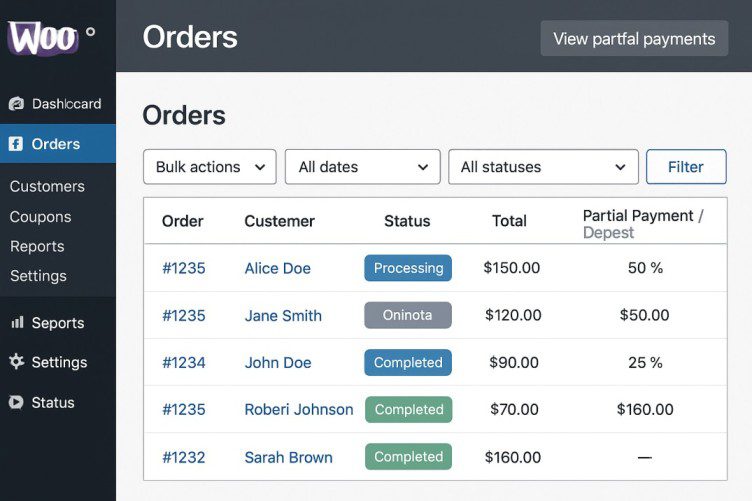
How to Enable Partial Payments or Deposits on Orders in WooCommerce
Offering customers the flexibility to pay a deposit or partial amount upfront can significantly boost conversions and reduce cart abandonment—especially for high-ticket products or made-to-order items.
In this guide, we’ll show you how to enable partial payments on your WooCommerce store using reliable plugins, step-by-step instructions, and optimization tips.
🧩 Why Enable Partial Payments?
Allowing deposits or split payments benefits both merchants and customers:
Benefits for Store Owners:
- Increases customer trust
- Secures a commitment early
- Reduces risk of order cancellation
Benefits for Customers:
- More flexibility in payment
- Better budget management
- Easier access to premium products
🔧 Methods to Enable Partial Payments in WooCommerce
WooCommerce doesn’t support partial payments by default. You’ll need a plugin to implement this feature.
1. WooCommerce Deposits Plugin by WebToffee
A premium plugin that allows you to accept deposits and split payments for products.
Key Features:
- Set fixed or percentage deposits
- Choose products eligible for deposits
- Custom payment schedules
- Checkout integration
Steps:
- Install and activate the plugin.
- Navigate to Products > Edit Product.
- Enable Deposit and set the amount or percentage.
- Optionally, configure payment plans or due dates.
2. YITH WooCommerce Deposits and Down Payments
YITH is a well-known plugin brand in the WooCommerce space.
Features:
- Allow or force deposit payments
- Customizable labels and messages
- Compatibility with variable products
- Integration with YITH Booking and Subscription plugins
How to Use:
- Install the plugin via Plugins > Add New.
- Configure global settings under YITH > Deposits.
- Enable deposits on a product level.
3. WP Simple Pay (for Stripe-based Installments)
If you’re using Stripe and want a lighter solution, WP Simple Pay allows you to set up recurring or partial payments.
Use Case: Best for services or subscriptions where Stripe is the main payment processor.
🛒 Customizing Checkout Experience
Once you’ve enabled partial payments, consider:
- Updating your product descriptions with deposit info
- Adding custom notices or tooltips during checkout
- Sending automated reminders for remaining payments
Use plugins like Follow-Ups or AutomateWoo for scheduling emails.
🧠 Pro Tips for Using Partial Payments
- Always disclose full price and payment terms clearly
- Offer multiple payment methods (credit card, UPI, PayPal)
- Monitor abandoned deposits and follow up with customers
- Use accounting plugins to track outstanding balances
❌ Possible Limitations
| Issue | Solution |
|---|---|
| May conflict with certain themes or checkout plugins | Test in staging first |
| Not ideal for subscription-based products | Use WooCommerce Subscriptions instead |
| Payment gateways may restrict partial capture | Use Stripe or PayPal for best results |
🔄 Alternative Solutions
If you need more robust billing options, explore:
- WooCommerce Subscriptions: Official Plugin
- WooCommerce Bookings: Combine deposits with scheduling
- Deposits for WooCommerce by Acowebs (Free): WordPress.org Plugin
📈
Enabling partial payments or deposits in WooCommerce is a smart way to increase conversions and offer flexibility. With the right plugin and a clear payment policy, you can make the buying process easier and more secure for everyone involved.


