




























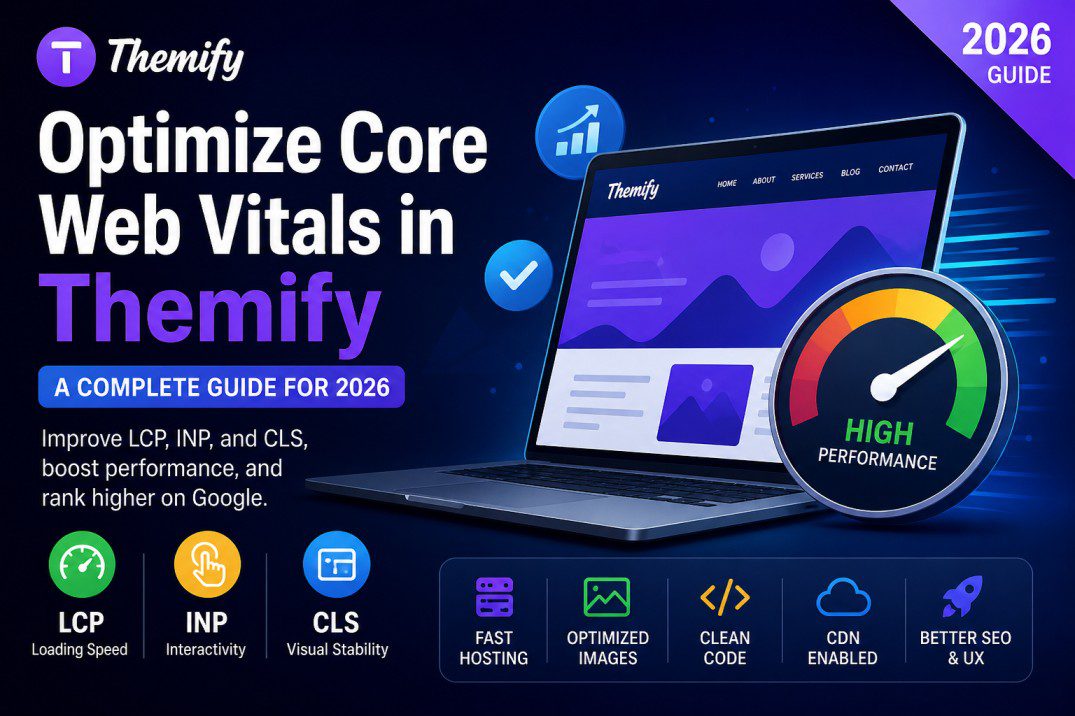
How to Optimize Core Web Vitals in Themify
If your WordPress website feels slow, ranks poorly on Google, or delivers a frustrating mobile experience, there’s a good chance your Core Web Vitals need improvement.
For websites built with Themify themes and Builder, optimizing performance can dramatically improve:
- Google rankings
- User experience
- Mobile speed
- Conversion rates
- Bounce rate
- Ad revenue
In this detailed guide, you’ll learn exactly how to optimize Core Web Vitals in Themify without breaking your website.
What Are Core Web Vitals?
Core Web Vitals are Google’s official page experience metrics used to measure website speed and usability.
The three main metrics are:
| Metric | Meaning | Ideal Score |
|---|---|---|
| Largest Contentful Paint (LCP) | How fast main content loads | Under 2.5s |
| Interaction to Next Paint (INP) | How quickly site responds to clicks | Under 200ms |
| Cumulative Layout Shift (CLS) | Visual stability during loading | Under 0.1 |
Google uses these metrics as a ranking factor in Search.
Why Themify Sites Sometimes Score Poorly
Themify themes are highly flexible and feature-rich. However, many users unknowingly create performance issues through:
- Heavy Builder layouts
- Large images
- Too many animations
- Excessive addons/plugins
- Poor hosting
- Unoptimized fonts
- Unused JavaScript and CSS
- Sliders and video backgrounds
The good news?
Most issues are fixable.
Step 1: Test Your Website First
Before optimizing, analyze your current performance.
Use these tools:
Step 2: Use Lightweight Themify Features
One of the biggest mistakes users make is enabling too many Builder effects.
Disable Unnecessary Animations
Avoid excessive:
- Scroll animations
- Parallax effects
- Floating effects
- Motion backgrounds
These increase JavaScript execution time and hurt INP scores.
Limit Video Backgrounds
Video hero sections look attractive but massively slow down mobile performance.
Instead:
- Use optimized images
- Use lightweight GIF alternatives
- Compress videos if necessary
Step 3: Optimize Images Properly
Large images are the #1 reason for poor LCP scores.
Best Practices
Convert Images to WebP
Use:
WebP images are significantly smaller than JPG or PNG.
Resize Images Before Uploading
Do NOT upload:
- 5000px photography
- Full DSLR images
- Uncompressed screenshots
Recommended widths:
- Hero images: 1600px max
- Blog images: 1200px max
- Thumbnails: 400–600px
Enable Lazy Loading
Lazy loading prevents offscreen images from loading immediately.
Most caching plugins support this automatically.
Step 4: Use Fast Hosting
Even the best optimization cannot fix poor hosting.
For Themify websites, use:
- LiteSpeed hosting
- Cloud hosting
- NVMe SSD servers
- PHP 8.3+
Good hosting dramatically improves:
- TTFB (Time To First Byte)
- LCP
- Server response time
Step 5: Install a Performance Plugin
A caching plugin is essential.
Popular options:
| Plugin | Best For |
|---|---|
| LiteSpeed Cache | LiteSpeed servers |
| WP Rocket | Beginner-friendly optimization |
| FlyingPress | Advanced performance |
| W3 Total Cache | Free optimization |
Recommended Settings
Enable:
- Page caching
- Browser caching
- GZIP/Brotli compression
- CSS minification
- JS minification
- Lazy loading
Be Careful With:
- JS delay
- CSS combine
- Async scripts
Some aggressive optimizations can break Themify Builder functionality.
Always test changes carefully.
Step 6: Optimize Fonts
Custom fonts often slow down Themify websites.
Use System Fonts When Possible
Instead of loading multiple Google Fonts:
- Arial
- Helvetica
- System UI stack
This removes extra requests.
Reduce Font Variants
Avoid loading:
- 100
- 200
- 300
- 400
- 500
- 600
- 700
- Italic versions
Only load the font weights you actually use.
Step 7: Reduce Builder Bloat
Themify Builder is powerful, but excessive rows and modules increase DOM size.
Tips
Simplify Layouts
Avoid:
- Nested rows
- Too many columns
- Excessive widgets
Reuse Layout Parts
Instead of rebuilding sections repeatedly:
- Use Layout Parts
- Use Saved Rows
This keeps design cleaner and easier to maintain.
Step 8: Remove Unused Plugins
Too many plugins create:
- Extra CSS
- Additional JavaScript
- Database overhead
Audit your plugins regularly.
Remove:
- Unused page builders
- Duplicate optimization plugins
- Heavy sliders
- Old addons
Step 9: Use a CDN
A CDN (Content Delivery Network) improves loading speed globally.
Popular CDN services:
Benefits:
- Faster asset delivery
- Reduced server load
- Better global performance
Step 10: Optimize Above-the-Fold Content
Google prioritizes visible content loading speed.
Improve Hero Sections
Avoid:
- Huge sliders
- Auto-playing videos
- Massive images
Instead:
- Use lightweight hero images
- Keep text HTML-based
- Reduce unnecessary effects
Step 11: Fix CLS (Layout Shift)
Layout shifts hurt user experience and SEO.
Common Causes in Themify
- Images without dimensions
- Dynamic ads
- Late-loading fonts
- Sliders changing height
- Sticky headers loading incorrectly
Solutions
Set Image Dimensions
Always define:
- width
- height
Reserve Space for Ads/Banners
Prevent content jumping during load.
Avoid Dynamic Height Sliders
Use fixed-height sections where possible.
Step 12: Optimize Mobile Performance
Most Core Web Vitals problems happen on mobile.
Mobile Optimization Tips
Reduce Mobile Animations
Disable unnecessary effects for mobile devices.
Hide Heavy Sections on Mobile
Themify Builder allows device visibility controls.
Use Smaller Mobile Images
Serve responsive images for mobile screens.
Step 13: Database Optimization
Over time, WordPress databases become bloated.
Clean:
- Revisions
- Spam comments
- Expired transients
- Old plugin tables
Plugins like:
can help safely optimize your database.
Step 14: Use Latest PHP Version
Older PHP versions reduce performance.
Recommended:
- PHP 8.2 or 8.3
Benefits:
- Faster execution
- Better memory usage
- Improved WordPress performance
Step 15: Disable Unused Themify Features
Some users enable:
- WooCommerce modules
- Portfolio features
- Extra Builder addons
even when unused.
Disable unnecessary components to reduce CSS and JS loading.
Advanced Optimization Tips
Preload Critical Fonts
Preloading important fonts improves LCP.
Example:
<link rel="preload" href="font.woff2" as="font" type="font/woff2" crossorigin>Use Critical CSS
Critical CSS loads visible content first.
Many optimization plugins generate this automatically.
Delay Third-Party Scripts
Scripts from:
- Analytics
- Ads
- Chat widgets
- Social embeds
can destroy INP scores.
Delay non-essential scripts whenever possible.
Common Mistakes to Avoid
Over-Optimization
Too much optimization can break:
- Themify Builder
- Mobile menus
- Sliders
- Animations
Always test after every change.
Using Multiple Cache Plugins
Never run:
- LiteSpeed + WP Rocket
- Multiple minification plugins
This causes conflicts.
Ignoring Mobile Testing
Desktop scores may look great while mobile performance remains poor.
Always optimize for mobile-first performance.
Best Themify Themes for Better Performance
Some lighter and well-optimized themes include:
Keeping layouts clean matters more than the theme itself.
Recommended Optimization Stack for Themify
Here’s a proven setup many users prefer:
| Component | Recommendation |
|---|---|
| Hosting | LiteSpeed/NVMe Hosting |
| Cache Plugin | LiteSpeed Cache or WP Rocket |
| CDN | Cloudflare |
| Image Optimization | ShortPixel |
| Theme | Ultra or Simple |
| PHP Version | 8.3 |
| Image Format | WebP |
Final Thoughts
Optimizing Core Web Vitals in Themify is completely possible — even for visually rich websites.
The key is balancing:
- Design
- Functionality
- Performance
Focus on:
- Fast hosting
- Lightweight layouts
- Optimized images
- Smart caching
- Reduced JavaScript
Small improvements can significantly boost:
- SEO rankings
- User experience
- Conversions
- Website speed
If you consistently monitor and optimize your website, your Themify-powered site can achieve excellent Core Web Vitals scores in 2026 and beyond.
May 8, 2026 @ 1:42 am
Really useful! Pixwit AI is a fantastic AI image tool and Free Video Generator provides excellent free video generation. Highly recommend both!