




















7 Habits That Will Save You From Major WordPress Headaches
Starting a WordPress website is incredibly easy.
Keeping that website fast, secure, stable, and easy to manage is where things can get a little more challenging.
In the beginning, everything feels straightforward. You install WordPress, choose a theme, add a few plugins, create your pages, and publish your content.
But after a few months, things can quickly become complicated.
You may suddenly find yourself dealing with:
- A plugin update that breaks your website
- Slow page-loading times
- Dozens of plugins you no longer remember installing
- Unclear or unreliable backups
- Spam and suspicious login attempts
- A confusing collection of categories and tags
- Outdated plugins creating compatibility or security risks
The good news?
You don’t need to be a WordPress expert to avoid most of these problems.
A few good habits from the beginning can make your website much easier to manage in the long run.
Here are 7 WordPress habits every beginner should develop from day one.
1. Don’t Install Every Update Immediately
That little “Update Available” notification can be hard to ignore.
You might think:
“An update is available, so I should install it right away.”
Updates are important, but updating blindly isn’t always a good idea.
Plugin and theme updates can include security fixes, bug fixes, performance improvements, and new features. However, an update can occasionally introduce compatibility problems with your WordPress version, theme, or other plugins.
Does that mean you should stop updating?
Absolutely not.
You should keep WordPress, plugins, and themes updated. The key is to update carefully rather than rushing every update.
For normal plugin updates that aren’t security-critical, you may want to give the release some time and check whether other users have reported problems.
For major WordPress releases, some site owners also prefer waiting for the first maintenance release before upgrading.
Security updates are different
If an update fixes a serious security vulnerability, delaying it for weeks may not be appropriate.
Security updates should be evaluated based on their urgency.
A safer update routine
Before updating:
- Take a backup.
- Read the update information.
- Check for known compatibility issues.
- Update one component at a time when practical.
- Visit your website after the update.
- Test important functionality.
If your website is important to your business, testing updates on a staging site before applying them to your live website is even better.
Beginner rule: Don’t be afraid of updates. Just don’t rush them.
2. Be Careful With Automatic Updates
Automatic updates can be extremely convenient.
Instead of remembering to update plugins and themes manually, WordPress can handle some updates for you.
But convenience comes with a trade-off.
An automatic update can change your website while you’re not actively monitoring it.
Imagine this:
You go to bed with a perfectly working website.
During the night, a plugin automatically updates.
The next morning, you discover that:
- Your contact form no longer works.
- Your checkout page has an error.
- Your page builder behaves differently.
- Something on your website looks broken.
Now you have to figure out what changed.
Should you disable every automatic update?
Not necessarily.
Automatic updates aren’t inherently bad. They can be useful when they’re configured appropriately and combined with reliable backups and monitoring.
However, if your website requires tightly controlled maintenance, manually managing important updates can give you greater control.
You can:
- Back up the website first
- Review the update
- Choose the right time to update
- Test the website afterward
- Identify the update responsible if something breaks
The important thing is to have an update strategy instead of simply enabling everything and forgetting about it.
3. Keep Your WordPress Website Lean
This is one of the most useful habits a beginner can develop.
WordPress plugins can feel like a giant toolbox.
Need a popup?
There’s a plugin.
Need a slider?
There’s a plugin.
Need social sharing?
There’s a plugin.
Need another contact form?
There’s another plugin.
Before you know it, you have dozens of plugins installed.
And that’s when maintenance can become difficult.
Every plugin adds another dependency
Plugins aren’t bad.
In fact, plugins are one of the biggest reasons WordPress is so flexible and powerful.
The problem is installing plugins that you don’t really need.
More plugins can mean:
- More updates
- More compatibility issues
- More settings to manage
- More code running on your website
- More potential security concerns
- More troubleshooting when something goes wrong
Ask yourself: “Do I really need this?”
Before installing a plugin, ask:
Can I solve this problem without adding another plugin?
If the answer is yes, consider the simpler solution.
And when you install a plugin for a temporary purpose and no longer need it, remove it.
Deactivate + forget isn’t good maintenance.
If you don’t need a plugin, delete it after confirming that nothing else depends on it.
The same principle applies to unused themes.
A lean WordPress installation is generally easier to understand, maintain, troubleshoot, and secure.
4. Think Carefully Before Using a Heavy Page Builder
Page builders have transformed WordPress.
They allow beginners to create complex layouts without writing code.
That’s incredibly useful.
However, page builders can also add another layer of complexity to your website.
Popular builders such as Elementor can be perfectly reasonable choices depending on the project. But you shouldn’t install a large page builder simply because it’s popular.
For a relatively simple website, you may be able to build everything you need with:
- The WordPress block editor
- A lightweight theme
- Custom CSS
- A few carefully selected plugins
Already using a page builder?
Don’t uninstall it without a plan.
If your existing pages were built with a page builder, those pages may depend heavily on it. Removing the builder can cause major layout and content problems.
Instead, treat the existing page builder as part of your website’s current architecture.
For a new website, however, take a moment to consider whether you actually need another large dependency.
The simpler your setup, the easier it is usually to maintain.
5. Create Backups Before You Need Them
Here’s a question every WordPress beginner should be able to answer:
If my website disappeared today, could I restore it?
If your answer is “I don’t know,” it’s time to think about your backup strategy.
A WordPress website can break for many reasons:
- A plugin update goes wrong
- A theme causes an error
- Someone accidentally deletes important content
- Your hosting account experiences a problem
- Your database becomes corrupted
- Your website is hacked
- You accidentally modify or delete files
A reliable backup gives you a way to recover.
Which Backup Plugin Should Beginners Use?
Two commonly used options are:
- UpdraftPlus
- WPvivid Backup Plugin
Both can be used to create scheduled backups and restore your website when needed.
The ideal backup frequency depends on how often your website changes.
For example, one website might use:
Weekly full backups + nightly incremental backups
A website that publishes content every day or processes frequent orders may need backups more often.
Don’t keep your only backup on the same server
This is an important point that beginners often overlook.
If your website and its only backup are stored in the same location, a serious server problem could potentially affect both.
Whenever possible, keep backups in a separate storage location.
And there’s one more thing you should never forget:
Test your backups
A backup isn’t useful if you discover during an emergency that it can’t actually be restored.
Periodically test your backup restoration process, preferably on a staging environment.
Don’t wait for a disaster to find out whether your backup works.
6. Add Security From the Beginning
Security shouldn’t become a priority only after your website gets hacked.
It should be part of your WordPress maintenance routine from day one.
For beginners, Wordfence Security is one popular option. Its free version includes useful security features such as firewall and malware-scanning functionality.
But remember:
A security plugin isn’t a magic shield
Installing a security plugin doesn’t automatically make your website secure.
Good WordPress security involves multiple layers.
That includes:
- Keeping WordPress updated
- Keeping plugins and themes updated
- Using strong, unique passwords
- Enabling two-factor authentication where available
- Removing unused plugins
- Removing unnecessary administrator accounts
- Using reliable hosting
- Maintaining regular backups
Think of security as a layered system.
Your security plugin is one layer.
Updates are another.
Strong passwords are another.
Backups are another.
Together, these practices provide much stronger protection than relying on a single plugin.
7. Keep Your Categories, Tags, and URLs Organized
This is one of those things beginners often ignore until their website becomes difficult to manage.
You create a category today.
Another one next month.
Then you create another category that is almost identical to the first one.
Eventually, you might end up with:
- WordPress
- WordPress
- WP
- WordPress Tips
- WordPress-tips
- WordPress Help
Now your content structure is inconsistent and confusing.
Create a naming convention
For example:
Categories
/category/wordpress//category/seo//category/security/
Tags
/tag/plugins//tag/security//tag/tutorials/
Your exact naming system isn’t the most important thing.
Consistency is.
Before creating a new category or tag, ask yourself:
“Will this actually help organize my content?”
If the answer is no, don’t create it.
A simple and consistent content structure will make your website easier for both you and your visitors to navigate.
Bonus: Use One SEO Plugin
SEO is another area where beginners can accidentally create unnecessary complexity.
You don’t need multiple SEO plugins performing the same job.
Choose one SEO solution and learn how to use it properly.
Two popular options are:
- Yoast SEO
- Rank Math SEO
Both can help with things such as:
- SEO titles
- Meta descriptions
- XML sitemaps
- Search engine settings
- Basic on-page SEO guidance
Don’t install both just because you’ve seen both recommended online.
Choose one and learn it well.
What About WordPress Website Speed?
Website performance is another reason to keep your WordPress setup simple.
It’s easy to fall into the trap of installing several plugins that promise to make your website faster.
Ironically, installing too many optimization plugins can create even more complexity.
If your hosting environment uses LiteSpeed, LiteSpeed Cache is one option worth considering because it provides caching and other performance features.
For database optimization, WP-Optimize is another commonly used option.
But don’t install performance plugins simply because someone told you that you need them.
First, identify the actual performance problem.
Sometimes the biggest improvement can come from:
- Better hosting
- Optimized images
- A lightweight theme
- Fewer unnecessary plugins
- Proper caching
- Removing unused functionality
Fix the problem first. Then choose the right tool.
A Simple WordPress Plugin Stack for Beginners
If you’re starting a new WordPress website, you probably don’t need 30 plugins.
A basic setup might include:
| Purpose | One possible solution |
|---|---|
| Security | Wordfence |
| Backup | UpdraftPlus or WPvivid |
| SEO | Yoast SEO or Rank Math |
| Caching | LiteSpeed Cache, if your server supports LiteSpeed |
| Database optimization | WP-Optimize, if required |
Notice the pattern?
We’re not recommending five different plugins for every task.
The goal is simple:
Use one reliable solution for each genuine requirement.
And even this list isn’t mandatory. Your website may need fewer—or completely different—tools.
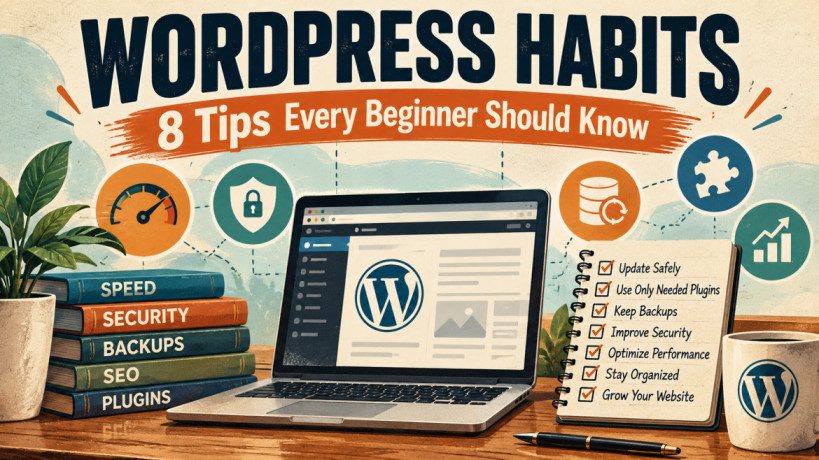
Your WordPress Maintenance Checklist
WordPress maintenance doesn’t have to be complicated.
Set aside a little time regularly and work through a simple checklist.
Every Week
☐ Make sure your website loads correctly.
☐ Test important forms.
☐ Check security alerts.
☐ Confirm that backups are running.
☐ Look for anything unusual.
Before Updating
☐ Take a fresh backup.
☐ Read the plugin or theme update information.
☐ Check for known compatibility problems.
☐ Update one component at a time when practical.
Every Few Months
☐ Review your installed plugins.
☐ Delete plugins you no longer need.
☐ Review unused themes.
☐ Check administrator accounts.
☐ Review categories and tags.
☐ Test your backup restoration process.
☐ Check whether you still need all of your current website functionality.
The Best WordPress Habit: Keep Things Simple
You don’t need to become a WordPress developer to maintain a healthy website.
You simply need to avoid creating unnecessary problems.
Think of your WordPress website like a car.
You wouldn’t keep adding random parts just because they’re available.
You wouldn’t ignore maintenance for years.
And you wouldn’t drive without knowing where the spare tire is.
Your website deserves the same mindset.
Update carefully.
Back up regularly.
Protect your website.
Remove unnecessary plugins.
Keep your content structure organized.
Don’t add complexity unless you actually need it.
Final Takeaway
The best WordPress website isn’t necessarily the one with the most features.
It’s the one that is easy to understand, easy to maintain, secure, backed up, and simple to recover when something goes wrong.
If you’re just getting started with WordPress, develop these habits early:
- Update carefully instead of rushing every update.
- Control automatic updates so you understand what’s changing.
- Keep your plugin count under control.
- Think twice before adding a heavy page builder.
- Create reliable backups and test them.
- Use a security solution such as Wordfence.
- Keep your categories, tags, and URLs consistent.
- Choose one SEO plugin instead of installing multiple overlapping tools.
You don’t need to do everything perfectly.
Just remember one simple rule:
The fewer unnecessary things you have to maintain, the fewer WordPress headaches you’ll have later.