



Themify Updater Now Requires Site URL Registration – Here’s Everything You Need to Know
If you use premium Themify themes or plugins on your WordPress website, there’s an important new update you should know about.
Themify has introduced a new feature that lets users register their website URL directly inside their Themify account before receiving updates. This change gives users better control, improved security, and easier license management — especially for freelancers, developers, and agencies managing multiple websites.
In this beginner-friendly guide, we’ll explain:
✅ What the new feature does
✅ Why Themify added it
✅ How to register your website
✅ What happens if you don’t register your site
✅ Common problems and fixes
✅ Why this matters for SEO and website security
Let’s get started 👇
What Is Themify Updater?
The Themify Updater is a plugin that connects your WordPress website to your Themify account.
Instead of manually downloading theme or plugin updates every time, the updater lets you:
- Automatically update Themify themes
- Update premium plugins
- Install products from your membership
- Manage updates directly inside WordPress
It saves a lot of time and keeps your website secure and up to date.
What’s New in the Latest Update?
Previously, users only needed their Themify username and license key to activate updates.
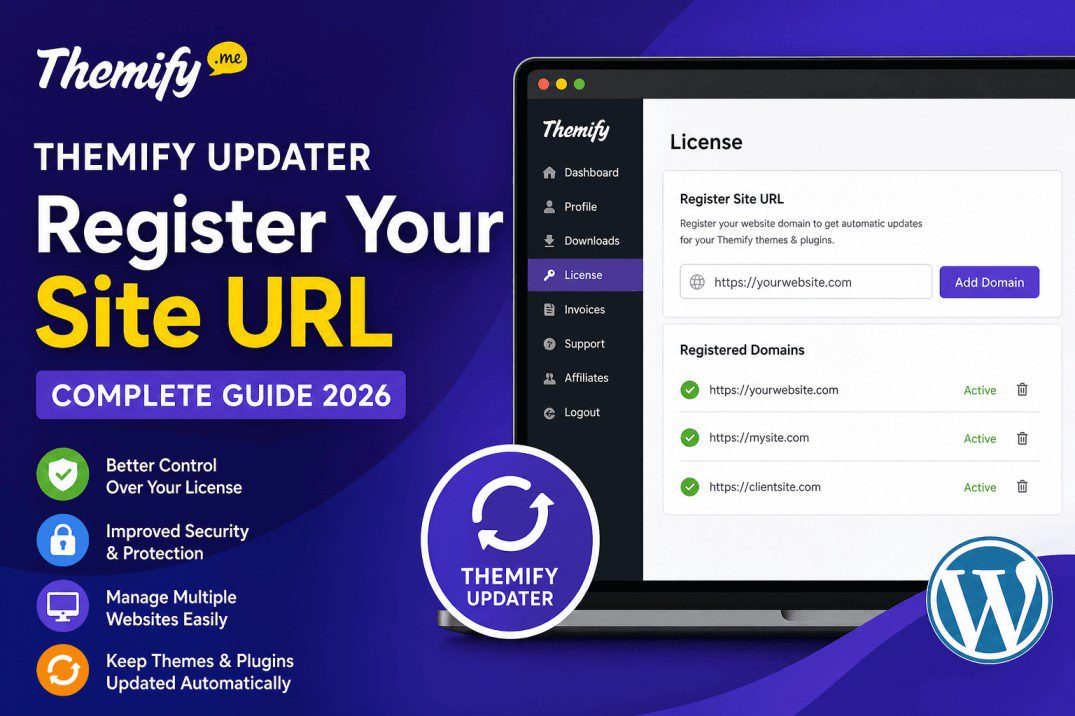
Now, Themify also requires you to register your website domain (URL) in your Themify Member Area.
This means only approved websites can receive updates.
For example:
✅ https://yourwebsite.com
✅ https://www.yourwebsite.com
Once your site is registered, the updater will continue working normally.
Why Did Themify Add This Feature?
This update mainly improves:
🔒 Security
Registering domains helps prevent unauthorized use of license keys.
Only approved websites can access updates.
🧹 Better License Management
If you manage many websites, things can get messy quickly.
Now you can easily:
- See which websites use your license
- Remove inactive sites
- Organize client projects
- Keep track of installations
👨💻 Easier for Freelancers & Agencies
This feature is especially useful for developers and agencies.
Example:
Imagine you built websites for 20 clients.
Some clients may no longer work with you, but their websites still use your license.
Now you can simply remove those domains from your account.
Easy 👍
How to Register Your Website URL in Themify
The process is very simple.
Step 1: Login to Your Themify Account
Go to the Themify Member Area and open:
Member Area → LicenseStep 2: Add Your Website URL
Inside the License section:
- Enter your website URL
- Click Add Domain
Example:
https://yourwebsite.comThat’s it 🎉
Your site is now approved for updates.
Step 3: Recheck License Status in WordPress
Now go back to your WordPress dashboard:
Dashboard → Themify LicenseClick:
Re-checkThis refreshes the connection between your website and Themify.
What Happens If You Don’t Register Your Site?
If your website URL is not registered:
❌ Theme updates may stop
❌ Plugin updates may fail
❌ License verification may not work
❌ New installations may not install correctly
Your existing website will usually continue working, but you may lose access to future updates and security fixes.
Why Keeping Themes Updated Is Important
Many people ignore updates — but updates are extremely important for your website.
🚀 Better Website Speed
Updated themes often include performance improvements that help your website load faster.
Fast websites improve:
- User experience
- SEO rankings
- Mobile performance
🔒 Improved Security
Outdated themes and plugins can create security risks.
Regular updates help protect your website from vulnerabilities and attacks.
📱 Better Compatibility
Updates ensure compatibility with:
- Latest WordPress versions
- WooCommerce
- PHP updates
- Modern browsers
Common Problems & Easy Fixes
Problem: License Not Activating
Try These Fixes:
✅ Double-check the website URL
✅ Make sure HTTPS matches
✅ Recheck your license status
✅ Verify your membership is active
Problem: Updates Not Showing
Solutions:
- Clear website cache
- Click “Re-check”
- Update the Themify Updater plugin
- Refresh the dashboard
Problem: Wrong Domain Registered
No worries 😊
Simply remove the old domain and add the correct one.
Helpful Tips for Users
✅ Register Both WWW and Non-WWW Carefully
Your website URL must match exactly.
Example:
https://example.comhttps://www.example.com
These can sometimes be treated differently.
✅ Remove Old Client Websites
If you manage client projects, regularly clean unused domains from your account.
This keeps things organized and secure.
✅ Always Keep Backup Before Updates
Before updating themes or plugins:
- Create a backup
- Test major updates carefully
- Use staging sites when possible
Why This Update Is Actually a Good Thing 👍
At first, extra steps can feel annoying.
But this change actually helps users by:
✅ Improving account security
✅ Giving better control over licenses
✅ Preventing unauthorized use
✅ Helping agencies manage projects
✅ Keeping websites more organized
For professionals managing multiple WordPress websites, this is a very useful improvement.
Final Thoughts
The new Themify Updater site registration system is a smart step toward better security and cleaner license management.
If you use Themify themes or plugins, make sure to:
✅ Register your website URL
✅ Recheck your license connection
✅ Keep your themes updated regularly
The setup only takes a minute, but it helps ensure smooth updates, better website security, and long-term stability for your WordPress site.
Frequently Asked Questions (FAQ)
Do I need to register every website?
Yes. Every website using Themify Updater should be registered in your Themify account.
Will my website stop working if I remove the domain?
Usually no. Your site should continue working, but updates and license verification may stop.
Is Themify good for SEO?
Yes. Themify themes are optimized for speed and performance, which helps user experience and SEO.
Can agencies manage multiple client websites?
Absolutely. This feature was designed to make client website management easier.
How long does setup take?
Usually less than 2 minutes 😊