

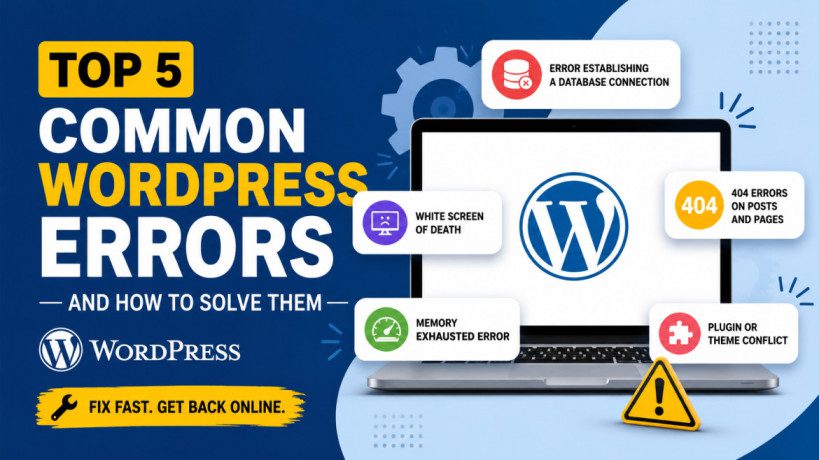
Top 5 Common WordPress Errors and How to Solve Them
WordPress powers more than 40% of websites on the internet, making it the world’s most popular content management system. While WordPress is powerful and user-friendly, website owners occasionally encounter errors that can disrupt functionality, impact user experience, and even affect search engine rankings.
The good news is that most WordPress errors are relatively easy to diagnose and fix once you understand their causes.
In this guide, we’ll explore the five most common WordPress errors, what causes them, and the step-by-step solutions to get your website back online.
1. White Screen of Death (WSOD)
What Is It?
The White Screen of Death is one of the most frustrating WordPress issues. Instead of displaying your website, WordPress shows a completely blank white page.
Sometimes the issue affects only specific sections of the site, while other times the entire website becomes inaccessible.
Common Causes
- Plugin conflicts
- Theme compatibility issues
- PHP memory exhaustion
- Fatal PHP errors
- Corrupted core files
How to Fix It
Step 1: Enable WordPress Debugging
Edit your wp-config.php file and add:
define('WP_DEBUG', true);
define('WP_DEBUG_LOG', true);
This creates an error log that can help identify the issue.
Step 2: Deactivate Plugins
Rename the plugins folder:
wp-content/plugins
to
wp-content/plugins-disabled
If the site loads, a plugin is causing the issue.
Step 3: Switch to a Default Theme
Rename your active theme folder and WordPress will automatically switch to a default theme such as Twenty Twenty-Six.
Step 4: Increase PHP Memory Limit
Add the following to wp-config.php:
define('WP_MEMORY_LIMIT', '256M');
2. Error Establishing a Database Connection
What Is It?
This error appears when WordPress cannot communicate with the MySQL database.
Your website becomes completely inaccessible and visitors see:
Error establishing a database connection
Common Causes
- Incorrect database credentials
- Corrupted database
- Database server downtime
- Hosting issues
How to Fix It
Step 1: Verify Database Credentials
Check your wp-config.php file:
define('DB_NAME', 'database_name');
define('DB_USER', 'database_user');
define('DB_PASSWORD', 'database_password');
define('DB_HOST', 'localhost');
Ensure all values match your hosting account.
Step 2: Repair the Database
Add this line to wp-config.php:
define('WP_ALLOW_REPAIR', true);
Visit:
yourdomain.com/wp-admin/maint/repair.php
Run the repair tool.
Step 3: Contact Your Hosting Provider
If credentials are correct, your database server may be experiencing issues.
3. 404 Errors on Posts and Pages
What Is It?
Visitors receive a “404 Page Not Found” error when trying to access existing posts or pages.
Common Causes
- Corrupted permalink settings
- Missing .htaccess file
- Plugin conflicts
- Migration-related issues
How to Fix It
Step 1: Reset Permalinks
Go to:
Settings → Permalinks
Click Save Changes without making any modifications.
This rebuilds WordPress rewrite rules.
Step 2: Regenerate .htaccess
Ensure your .htaccess file contains:
# BEGIN WordPress
<IfModule mod_rewrite.c>
RewriteEngine On
RewriteBase /
RewriteRule ^index\.php$ - [L]
RewriteCond %{REQUEST_FILENAME} !-f
RewriteCond %{REQUEST_FILENAME} !-d
RewriteRule . /index.php [L]
</IfModule>
# END WordPress
Step 3: Disable Recently Installed Plugins
Security and redirect plugins often cause permalink conflicts.
4. Memory Exhausted Error
What Is It?
WordPress may display messages like:
Allowed memory size exhausted
This occurs when PHP runs out of allocated memory while executing scripts.
Common Causes
- Large plugins
- Complex themes
- Heavy page builders
- Resource-intensive WooCommerce stores
How to Fix It
Step 1: Increase Memory Limit
Edit wp-config.php:
define('WP_MEMORY_LIMIT', '256M');
For WooCommerce stores:
define('WP_MEMORY_LIMIT', '512M');
Step 2: Optimize Plugins
Deactivate unnecessary plugins and remove outdated extensions.
Step 3: Upgrade Hosting
Shared hosting plans often have strict memory limits. Consider upgrading to managed WordPress hosting or a VPS.
Step 4: Update PHP Version
Modern PHP versions handle memory more efficiently.
Recommended version:
PHP 8.2 or PHP 8.3
5. Plugin or Theme Conflict
What Is It?
A plugin or theme conflict can cause:
- Broken layouts
- Missing functionality
- JavaScript errors
- White screens
- Admin dashboard issues
Common Causes
- Outdated plugins
- Incompatible updates
- Duplicate functionality plugins
- Poorly coded extensions
How to Fix It
Step 1: Troubleshooting Mode
Deactivate all plugins.
Reactivate them one at a time until the issue reappears.
Step 2: Check Browser Console
Press:
F12 → Console
Look for JavaScript errors.
Step 3: Test with a Default Theme
Switch temporarily to a WordPress default theme.
If the issue disappears, the theme is causing the conflict.
Step 4: Keep Everything Updated
Always update:
- WordPress Core
- Themes
- Plugins
- PHP Version
before compatibility issues become serious.
Best Practices to Prevent WordPress Errors
Preventing issues is easier than fixing them.
Follow these recommendations:
Regular Backups
Use plugins such as:
- UpdraftPlus
- Solid Backups
- BlogVault
Keep Software Updated
Outdated software is one of the leading causes of WordPress problems.
Use Quality Plugins
Install plugins only from reputable developers with active support and regular updates.
Monitor Error Logs
Enable server-side logging to identify problems before they affect visitors.
Use a Staging Site
Always test updates on a staging environment before deploying them to your live website.
Final Thoughts
WordPress errors can seem intimidating, but most issues have straightforward solutions. Whether you’re facing a White Screen of Death, database connection problem, 404 errors, memory limitations, or plugin conflicts, systematic troubleshooting can usually restore your site quickly.
The key is to maintain regular backups, keep WordPress updated, and use reliable themes and plugins. With proper maintenance and monitoring, you can minimize downtime and keep your WordPress website running smoothly.
Have you encountered any of these WordPress errors? Understanding the root cause is often the first step toward a fast and effective solution.