


























How to Use Easy MCP AI on Your WordPress Site
Imagine managing your WordPress website by chatting with an AI assistant. Instead of switching between your chat window and the WordPress dashboard for every small task, you could ask the assistant to find posts, prepare drafts or review website content. Easy MCP AI helps make this possible by connecting WordPress to compatible AI applications through the Model Context Protocol (MCP).
This guide covers setup, everyday uses and essential safeguards. Available features depend on your plugin version, enabled tools, AI client and user permissions.
What Is Easy MCP AI and How Does It Work?
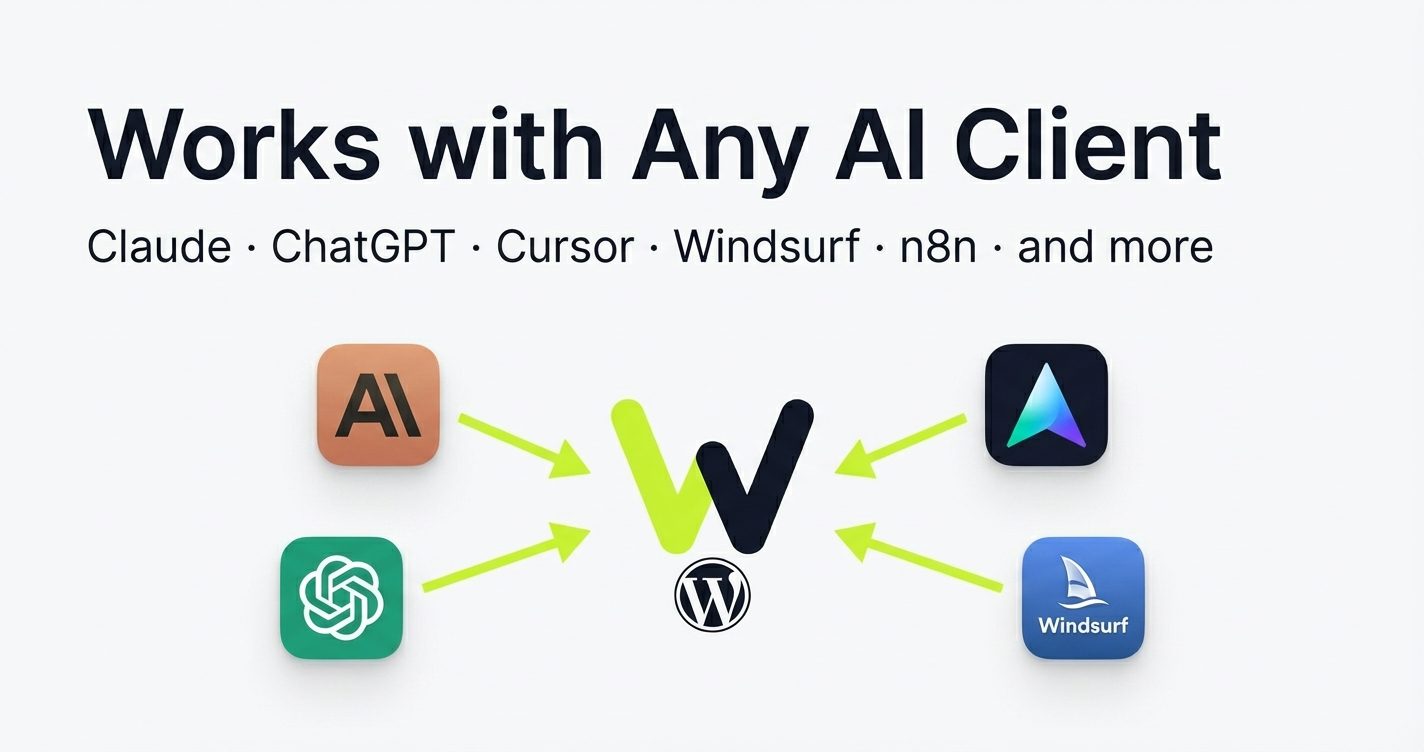
Easy MCP AI is a WordPress plugin that provides an MCP server for your website. MCP stands for Model Context Protocol, an open protocol that lets compatible AI applications connect to external tools and data sources in a consistent way.
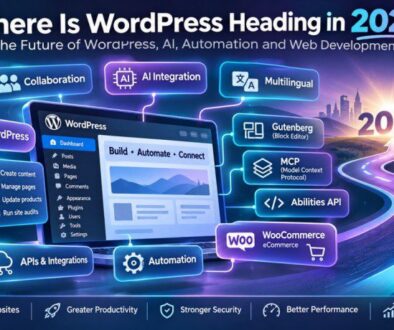
Easy MCP AI acts as a bridge between WordPress and an AI assistant. The plugin exposes selected website capabilities as tools, which may include reading or editing posts, working with media and managing categories or tags. To understand the broader shift, read our guide to AI tools, agents and MCP in the WordPress ecosystem.
Why Use Easy MCP AI with WordPress?
A connected assistant can help with repetitive tasks such as finding recent posts, summarizing a page, improving an excerpt or preparing a first draft from a brief. You describe the task in plain language instead of navigating through several dashboard screens. See how AI agents are changing WordPress development for more examples of this wider trend.
Step 1: Install and Activate Easy MCP AI
Log in to your WordPress administration area and go to Plugins → Add New Plugin. Search for “Easy MCP AI”, check that you have selected the correct plugin, and click Install Now followed by Activate.
You can also download the plugin ZIP from the WordPress.org plugin directory and upload it through the Add Plugins screen. Check the official listing for the latest requirements and plugin details.
Step 2: Explore the Easy MCP AI Dashboard
After activation, open the Easy MCP AI menu in your WordPress dashboard. Start with the dashboard and connection instructions. Locate the MCP server address and review the authentication method supported by the AI application you want to connect.
Review available tools and settings. Some capabilities may be disabled or require an administrator to enable them.
Step 3: Connect an AI Assistant to Easy MCP AI
Choose an MCP-compatible AI client and follow its current setup instructions. Add the server address shown in your Easy MCP AI dashboard; setup screens vary between applications.
For OAuth, add the MCP server, sign in to WordPress and review the access requested. Confirm that the connection is to your site and the permissions are appropriate.
Some configurations use an API token. Create one in the plugin’s connection settings, select the WordPress user and permissions, then enter the details in your AI client. Keep the token private like a password.
For the latest client-specific instructions and authentication options, refer to the official setup and authentication instructions.
Step 4: Configure Easy MCP AI Tools and Permissions
Review the Tools section and enable only what your assistant needs. Start with read-only access so it can list posts and inspect content before making changes.
When ready, selectively enable writing actions such as creating drafts or updating posts. WordPress still checks the connected user’s capabilities, so an author account does not automatically have administrator access.
Step 5: Try These Easy MCP AI Prompts
Try simple prompts first, and verify the results:
- Find content: “List my latest five published posts with their titles and links.”
- Review an article: “Read my latest WordPress security article and suggest improvements to its introduction.”
- Prepare a draft: “Create a beginner-friendly article about website backups and save it as a draft.”
- Improve an excerpt: “Suggest a concise, search-friendly excerpt for this post. Show me before changing it.”
- Organize content: “Suggest relevant categories and tags for this article, but do not apply them yet.”
These are examples rather than a promise that every action is available in every setup. The client must support the relevant MCP tool, the tool must be enabled, and the connected WordPress user must have the required permissions.
Step 6: Review Changes Before Publishing
AI-generated content should not be published without review. Open any saved draft in the WordPress editor and check its facts, headings, links, formatting and tone. Make sure external links lead to the correct resources and that the article does not contain invented claims or features.
Use drafts for new articles, keep backups and test unfamiliar operations on a staging site before changing live content.
Easy MCP AI Security Tips for Your WordPress Site
Treat the connection like any other application access: use HTTPS, trusted clients and the least permissions needed.
- Protect credentials: Keep API tokens private and revoke connections you no longer use.
- Limit access: Begin with read-only tools and enable writing permissions selectively.
- Review activity: Where available, check the plugin’s activity or audit history to see what actions were performed.
- Keep backups: Maintain a recent backup before significant content or configuration changes.
- Use staging: Test new tools and workflows before relying on them on a production website.
Check the AI service’s privacy terms before connecting it. Avoid sending customer details, passwords or confidential business information unless you have reviewed the relevant safeguards.
Troubleshooting Common Easy MCP AI Setup Issues
If the client cannot connect, verify the MCP server address, HTTPS access and authentication. Check that the credential is still valid.
If an action fails, check that its tool is enabled and the WordPress user has permission. Plugin conflicts or blocked authentication headers may also be responsible; consult the plugin diagnostics and troubleshooting guide.
Final Thoughts
Easy MCP AI provides a way to connect WordPress with compatible AI assistants through the Model Context Protocol. It can bring selected website tasks into a conversational workflow and reduce the need to perform every small action manually in the dashboard.
Start by installing the plugin, connecting one supported client and testing read-only tools. Add writing permissions only when you understand the workflow, and review important changes before publishing. With careful permissions, backups and human oversight, Easy MCP AI can make routine WordPress management more convenient while keeping you in control of your website.