

























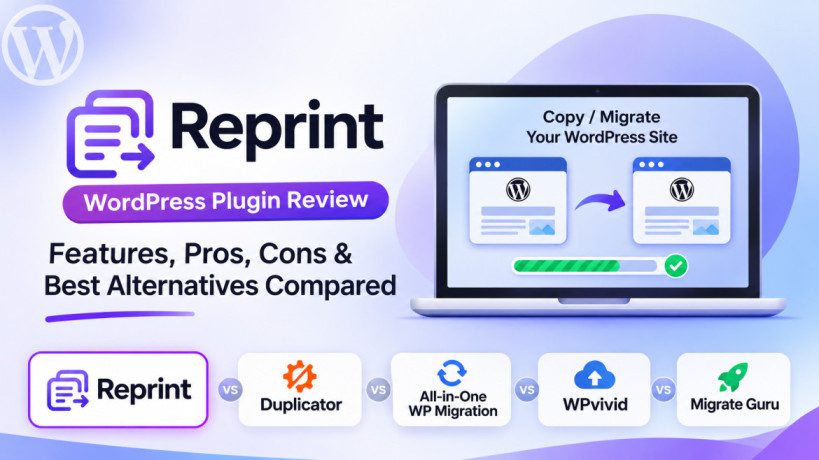
Reprint WordPress Plugin: Features, Pros, Cons & Best Alternatives Compared
WordPress website migration has always been an important part of website management. Whether you are moving a website to a new hosting provider, creating a local development environment, testing a new theme, or building a staging website, having a reliable migration solution can save hours of manual work.
Traditionally, migrating a WordPress website required downloading files through FTP, exporting databases using phpMyAdmin, uploading everything to a new server, and updating website URLs. Although migration plugins have made this process easier, large websites can still face problems involving server timeouts, upload limits, insufficient storage, and interrupted transfers.
The Reprint WordPress plugin introduces a different approach to this process. It is a free, open-source website migration and cloning solution designed to copy WordPress websites directly to another computer or server.
But how does Reprint work? What makes it different from established plugins such as Duplicator, All-in-One WP Migration, WPvivid, and Migrate Guru? And is it worth using for your WordPress website?
In this detailed review, we will explore Reprint’s features, installation process, advantages, disadvantages, security considerations, and the best alternatives available.
What Is the Reprint WordPress Plugin?
Reprint is a WordPress website migration and cloning tool available through the official WordPress Plugin Directory.
It is designed to copy an entire WordPress installation, including its database, themes, plugins, media files, and other website data, to another environment.
Unlike conventional migration plugins that generally create a downloadable backup archive, Reprint uses a streaming-based transfer approach.
It consists of two main components:
- Reprint Server: A WordPress plugin installed on the website you want to copy.
- Reprint Client: A separate PHP command-line application that runs on the destination computer or server.
The Reprint Server makes the source website available to an authorized client through a secure connection. The client then downloads the website files and database information.
This approach is particularly interesting for WordPress developers who regularly create local copies of production websites.
For example, imagine you manage a WordPress website with thousands of images, several plugins, and a large database. Instead of creating a single archive containing everything, Reprint transfers the website data in smaller chunks.
This can make the migration process more manageable, particularly when working with large websites or hosting environments with limited resources.
Key Features of the Reprint WordPress Plugin
1. Streaming-Based Website Migration
One of the most interesting features of Reprint is its streaming-based migration architecture.
Traditional migration plugins often package website files and database information into a single archive before transferring it.
This process can consume considerable server resources, especially when migrating websites containing large media libraries.
Reprint takes a different approach by transferring website data in smaller chunks.
Consider a photography website containing 15,000 images and several gigabytes of content. Creating a complete backup archive may require significant temporary storage.
With Reprint, files and database information are transferred through its client-server workflow without requiring one massive archive on the source server.
This makes it an interesting alternative for developers working with large WordPress installations.
2. Resume Interrupted Transfers
Internet interruptions and server timeouts can make website migration frustrating.
Imagine transferring a website when your internet connection suddenly disconnects after 70% of the files have been downloaded.
With conventional workflows, you may need to troubleshoot the failed transfer or restart parts of the migration.
Reprint supports saving transfer progress so that an interrupted file transfer can resume from its previous position.
This is especially useful when:
- Migrating large websites.
- Working with unstable internet connections.
- Copying websites between geographically distant servers.
- Creating local development environments.
However, not every interrupted database operation can be resumed. Some database import failures may require a fresh import.
3. Automatic URL Replacement
Moving a WordPress website to a different domain or local environment often creates URL-related problems.
For example, your original website might use:
Your local development website might use:
WordPress stores URLs in multiple places, including database records, page-builder content, serialized data, custom fields, and plugin settings.
Simply replacing the original domain with the new domain can damage serialized PHP information.
Reprint includes URL rewriting functionality designed to handle different WordPress data structures safely.
It can work with serialized PHP data, JSON, block markup, shortcodes, and other content formats.
This is particularly helpful when developing websites with page builders or custom WordPress configurations.
4. No External Reprint Cloud Account Required
Another advantage is that Reprint does not require users to purchase a subscription or create an account with an external Reprint cloud service.
The website data travels directly from the authorized source website to the destination client over HTTPS.
This gives developers greater control over where their website data is transferred and stored.
It is an attractive approach for people who prefer keeping their development workflow independent of third-party migration infrastructure.
5. Incremental File Synchronization
Reprint can identify files that have changed since a previous successful transfer.
For example, suppose you initially copy your production website to your local computer.
After a few days, you update the theme’s CSS file, modify JavaScript, or upload new images.
Instead of downloading every unchanged file again, Reprint can retrieve the changed files.
This can save time when regularly synchronizing a local development copy with its source website.
However, database synchronization works differently. Importing the database again replaces the destination database rather than merging changes made locally.
6. Support for MySQL and SQLite
Reprint also supports copying a website into an environment using SQLite instead of MySQL.
This can be useful for developers who want to experiment with WordPress locally without configuring a separate MySQL database server.
However, compatibility is important.
Some WordPress plugins depend on MySQL-specific functionality. Therefore, a website that works perfectly with MySQL might require additional configuration when running on SQLite.
How to Install and Use Reprint
Reprint’s installation process is slightly different from conventional WordPress migration plugins because it requires a separate command-line client.
Here is a simplified overview.
Step 1: Install the Reprint Plugin
Log in to your WordPress dashboard.
Navigate to:
Plugins → Add New Plugin
Search for Reprint, install the plugin, and activate it.
You can also download it from the official WordPress Plugin Directory:
https://wordpress.org/plugins/reprint/
Step 2: Open Reprint Server Settings
After activation, navigate to:
Tools → Reprint Server
This section allows you to authorize the client that will access your website.
Step 3: Download the Reprint Client
Download the separate Reprint PHP command-line application.
You need PHP 7.4 or newer on the destination computer to run the client.
The source plugin has different PHP compatibility requirements, so check the current documentation before installation.
Step 4: Authorize the Client
The client generates a Migration Token.
Copy the token and enter it in the Reprint Server settings page on your WordPress website.
Authorize the client to establish a secure connection.
Step 5: Start Copying Your Website
After authorization, execute the Reprint client from your terminal.
It will connect to the source website, download its files and database information, prepare the destination installation, and rewrite URLs where required.
Once the process is complete, you can open the copied website in your local development environment.
For detailed installation instructions, visit the official Reprint documentation:
https://developer.wordpress.org/reprint/getting-started/copy-a-site/
Reprint vs Other WordPress Migration Plugins
Reprint is entering a competitive category with several established WordPress migration solutions.
Let’s compare it with four popular alternatives.
1. Reprint vs Duplicator
Duplicator is one of the most popular WordPress migration and backup plugins.
It allows users to package an entire WordPress website into an archive and install it on another server.
Its major advantage is its straightforward migration workflow.
Key features include:
- Complete website backups.
- Website cloning and migration.
- Database and file packaging.
- Search-and-replace functionality.
- Restoration capabilities.
- Advanced migration and automation options in Duplicator Pro.
Unlike Reprint, Duplicator offers a familiar dashboard-based workflow that is easier for beginners.
Which should you choose?
Choose Duplicator if you want a complete backup and migration solution with a relatively simple installation process.
Choose Reprint if you are comfortable with command-line tools and want a direct, streaming-based website copying workflow.
Official plugin: https://wordpress.org/plugins/duplicator/
2. Reprint vs All-in-One WP Migration
All-in-One WP Migration is another widely used WordPress migration plugin.
Its biggest advantage is simplicity.
Users can export their entire website into a WPress backup file and import it into another WordPress installation.
Its features include:
- One-click website export.
- Website import.
- Database and media migration.
- Automatic URL replacement.
- Serialized data handling.
- Extensions for additional storage and migration capabilities.
For beginners, the dashboard-based workflow is much easier than running terminal commands.
However, the import process can be affected by server upload limits and extension requirements.
Which should you choose?
All-in-One WP Migration is suitable for website owners who prefer simple export-and-import operations.
Reprint is more interesting for developers who want to avoid creating one large backup archive.
Official plugin: https://wordpress.org/plugins/all-in-one-wp-migration/
3. Reprint vs WPvivid Backup & Migration
WPvivid is a strong alternative because it combines website migration with backup and restoration functionality.
Its features include:
- Full website backups.
- Database and file backups.
- Website migration.
- Scheduled backups.
- Remote storage integrations.
- Staging website creation.
- Website restoration.
Its free version already provides useful backup and migration capabilities, while the Pro version adds advanced features.
For website owners who want one plugin to handle regular backups and migration, WPvivid is a practical choice.
Which should you choose?
WPvivid is better for users who need backup scheduling, restoration, and staging features.
Reprint is more suitable for developers who want to create local copies and synchronize website files using a command-line workflow.
Official plugin: https://wordpress.org/plugins/wpvivid-backuprestore/
4. Reprint vs Migrate Guru
Migrate Guru is designed to simplify WordPress website migration, particularly when moving websites between hosting providers.
It uses cloud-assisted migration infrastructure to handle the transfer process.
Its main features include:
- One-click migration.
- Automatic URL replacement.
- Large website migration support.
- Serialized database handling.
- Migration notifications.
- Support for many hosting providers.
Migrate Guru advertises support for websites up to 200GB, although actual performance depends on website and hosting conditions.
It is particularly useful for users who do not want to manage command-line migration operations.
However, Migrate Guru is not a backup plugin and does not support local-host migration.
Which should you choose?
Choose Migrate Guru if you want a convenient cloud-assisted migration to another hosting provider.
Choose Reprint if your goal is creating local development copies or working with command-line-based migration tools.
Official plugin: https://wordpress.org/plugins/migrate-guru/
Complete Comparison: Reprint vs Its Alternatives
| Feature | Reprint | Duplicator | All-in-One | WPvivid | Migrate Guru |
|---|---|---|---|---|---|
| Website migration | Yes | Yes | Yes | Yes | Yes |
| Website cloning | Yes | Yes | Yes | Yes | Yes |
| Backup and restore | Limited | Yes | Yes | Yes | No |
| Local development | Yes | Yes | Yes | Yes | No |
| Command-line workflow | Yes | Pro features | Pro features | Not core workflow | No |
| Scheduled backups | No | Pro | Premium | Yes | No |
| Cloud-assisted migration | No | No built-in service | No built-in service | No built-in service | Yes |
| Incremental file synchronization | Yes | Different workflow | No equivalent core workflow | Pro backup features | No |
Reprint focuses on copying WordPress websites, while other plugins offer broader backup, restoration, and migration features.
Advantages of the Reprint Plugin
After exploring its functionality, here are its biggest advantages.
1. Free and Open Source
Reprint is free and open-source software. There is no mandatory subscription required to copy a website.
2. No Large Backup Archive Required
Its streaming architecture avoids creating one massive archive on the source server.
3. Resumable Transfers
Saved transfer progress makes interrupted file transfers easier to continue.
4. Direct Data Transfer
Website files and database information are transferred to the authorized client over HTTPS.
5. Developer-Friendly Workflow
Its command-line architecture makes it interesting for developers who want to integrate website copying into their development processes.
6. Useful for Local Development
Developers can copy production websites to their computers and test new plugins, themes, and custom code without experimenting directly on live websites.
Disadvantages and Limitations of Reprint
Despite its promising technology, Reprint has some limitations.
1. Requires Command-Line Knowledge
This is probably its biggest disadvantage for beginners.
Unlike Duplicator or WPvivid, Reprint does not provide a complete point-and-click migration experience.
Users need to understand PHP, terminal commands, and client authorization.
2. Not a Complete Backup Solution
Reprint focuses on website copying rather than managing regular backups.
It does not replace a dedicated backup plugin with scheduled backups, retention policies, and easy restoration.
3. Database Changes Are Not Merged
When you import the source database again, the destination database is replaced.
This means locally created database changes may be lost.
4. Source Changes During Migration
If the source website receives new orders, uploads, or database updates while migration is running, the resulting copy may not represent one perfectly synchronized moment.
For production migrations, temporarily pause important website activity before the final transfer.
5. External Integrations Require Attention
A copied WooCommerce website might still connect to live payment gateways, email services, and external APIs.
Always review these connections before using the copied website for testing.
6. Relatively New Plugin
Reprint is a newer entrant in the migration category. Its public adoption and user-review history are considerably smaller than those of established alternatives.
This makes it worth testing carefully before depending on it for critical production workflows.
Is Reprint Safe to Use?
Website migration involves transferring sensitive information.
Your WordPress database may contain user information, password hashes, private content, customer records, and plugin configuration.
Reprint uses HTTPS to protect information during transfer and supports public/private-key-based client authorization.
However, users should follow basic security practices:
- Authorize only trusted migration clients.
- Keep private keys and migration tokens secure.
- Store downloaded website copies in protected locations.
- Disable live payment and email connections on development copies.
- Revoke migration access when it is no longer required.
- Delete unnecessary copies containing sensitive information.
Remember that security also depends on how you configure the destination environment.
Who Should Use Reprint?
Reprint is not necessarily the best option for every WordPress user.
Its strongest audience is developers and technically confident website administrators.
Here are some recommendations:
| User Type | Recommended Plugin |
|---|---|
| WordPress beginners | WPvivid |
| Freelance developers | Reprint or Duplicator |
| WordPress agencies | Duplicator or WPvivid |
| Local development | Reprint |
| Automatic backup management | WPvivid |
| Simple website migration | All-in-One WP Migration |
| Hosting-to-hosting migration | Migrate Guru |
| Command-line development workflows | Reprint |
Practical Example: Using Reprint in a WordPress Development Workflow
Imagine you are a WordPress developer working on multiple client websites.
You want to test a new plugin update without affecting the live website.
Your workflow could look like this:
- Install Reprint on the client’s source website.
- Authorize your local Reprint client.
- Copy the website to your local development environment.
- Test the new plugin.
- Modify theme CSS, JavaScript, or PHP files.
- Synchronize changed source files when required.
- Verify the website before planning production changes.
This can make website development and testing more convenient.
However, remember that the standard WordPress.org Reprint plugin supports downloading a website copy, not automatically pushing local changes back to the production website.
Final Verdict: Is Reprint Worth Using?
Reprint is an interesting addition to the WordPress migration ecosystem.
Its biggest strength is its different approach to website copying. Streaming transfers, resumable downloads, automatic URL rewriting, and direct client-to-server communication make it particularly useful for developers.
However, its command-line requirements and limited backup-management features mean it is not yet the most convenient option for everyday WordPress users.
Here is my recommendation:
- Reprint: Best for developers who prefer command-line workflows and local website copies.
- Duplicator: Best for versatile website migration and backup management.
- All-in-One WP Migration: Best for simple dashboard-based export and import.
- WPvivid: Best for backups, restoration, migration, and staging.
- Migrate Guru: Best for cloud-assisted hosting migrations.
Overall, Reprint is worth testing, especially if you regularly work with WordPress development environments.
However, I would not recommend replacing your existing backup solution with Reprint just yet.
It has promising technology, but more real-world adoption and continued development will help establish its position against mature migration plugins.
For now, using Reprint for development and local website copying while maintaining a separate backup solution for production websites is a sensible approach.