

























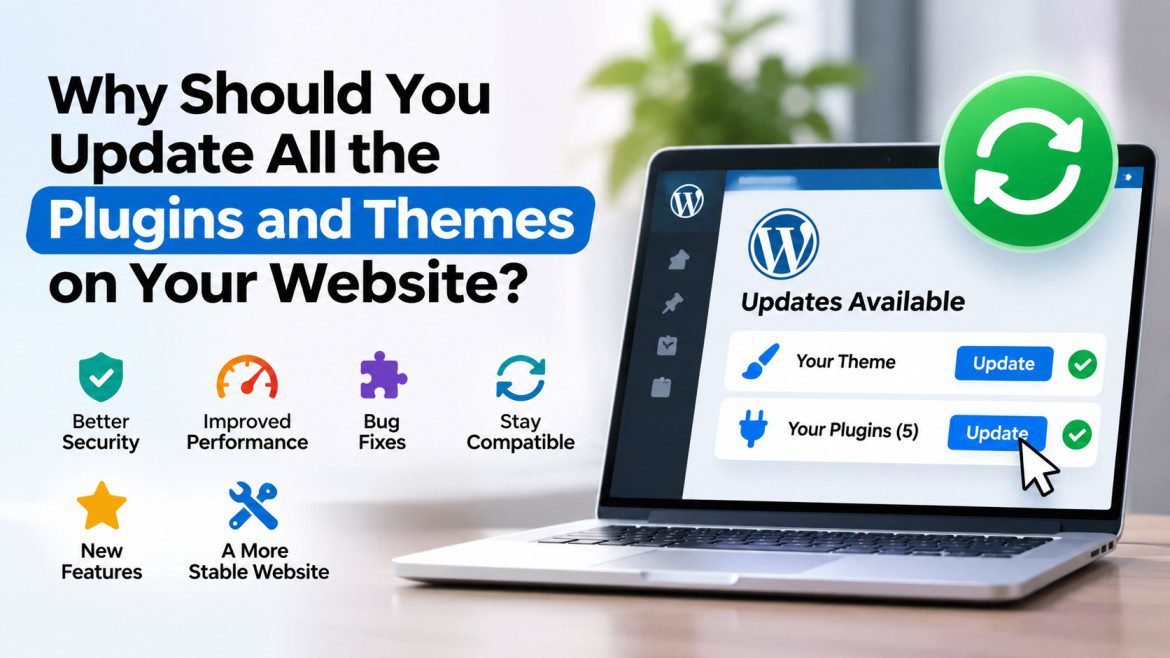
Why Should You Update All the Plugins and Themes on Your Website?
Keeping your WordPress website updated is one of the most important parts of website maintenance. However, many website owners ignore plugin and theme updates because their websites appear to be working fine.
You might think, “If everything is working, why should I update anything?”
The answer is simple: outdated plugins and themes can put your website at risk. They can cause security problems, slow down your website, create compatibility issues, and prevent you from using new features.
Regular updates help keep your website secure, stable, fast, and compatible with the latest WordPress version.
In this article, we will explain why you should update your WordPress plugins and themes regularly and what can happen if you continue using outdated versions.
1. Improve Website Security
Security is one of the biggest reasons to keep your WordPress plugins and themes updated.
WordPress is a popular platform, and hackers often look for websites running outdated software. Sometimes, developers discover security weaknesses in their plugins or themes and release updates to fix them.
For example, an outdated plugin might have a vulnerability that allows attackers to:
- Access your website without permission.
- Upload malicious files.
- Steal sensitive information.
- Create unwanted administrator accounts.
- Inject malicious code into your website.
- Redirect visitors to harmful websites.
When developers discover these issues, they usually release a security update.
If you do not install that update, your website may remain exposed to the same security risk.
Tip: Always pay attention to security updates. Install them as soon as possible after taking a backup and checking for any known compatibility concerns.
2. Maintain Compatibility with the Latest WordPress Version
WordPress regularly releases updates to improve performance, security, and functionality.
Plugins and themes also need to keep up with these changes.
Sometimes, an older plugin or theme may not work properly with a newer WordPress version because it uses outdated code or functions that have changed.
This can result in:
- Features not working correctly.
- Builder modules not loading.
- Broken layouts.
- PHP errors.
- Problems in the WordPress dashboard.
- Unexpected website behaviour.
Developers release updates to make sure their products continue working with newer WordPress versions.
Keeping everything updated reduces the chances of compatibility issues.
3. Fix Bugs and Other Issues
No plugin or theme is perfect. Developers regularly receive bug reports from users and work on fixing them.
An update may include fixes for issues such as:
- Buttons not working.
- Images not displaying correctly.
- Sliders or animations behaving unexpectedly.
- Forms not submitting.
- Mobile layout problems.
- WooCommerce functionality issues.
- Builder modules not loading correctly.
For example, if a theme’s latest version fixes a responsive layout issue, updating the theme can resolve that problem without requiring custom CSS or other workarounds.
Even if you are not experiencing any problems, installing updates helps you benefit from fixes that developers have already released.
4. Improve Website Performance
Website speed is important for both visitors and search engines.
Developers often improve their code to make plugins and themes work more efficiently.
Performance improvements may include:
- Reducing unnecessary CSS and JavaScript.
- Optimizing database queries.
- Improving image loading.
- Reducing unnecessary server requests.
- Improving page rendering.
- Removing outdated code.
For example, an older theme might load scripts that are no longer needed. A newer version may improve how those scripts are loaded, helping reduce unnecessary work.
However, not every update will make your website faster. Performance depends on several factors, including hosting, caching, images, plugins, and your website’s overall setup.
Still, keeping your software updated gives you access to the latest performance improvements.
5. Get Access to New Features
Developers continuously improve their plugins and themes by adding new features and options.
When you update, you may get access to:
- New design options.
- Additional builder modules.
- More customization settings.
- Improved responsive controls.
- New integrations.
- Better WooCommerce support.
- New security features.
- Improved accessibility options.
For example, a page builder might introduce new layout controls or responsive design settings in a newer version.
If you continue using an older version, you may miss out on these improvements.
Updating also helps you take advantage of new functionality without installing additional plugins or writing custom code.
6. Ensure Compatibility with PHP and Other Technologies
WordPress websites depend on several technologies, including PHP, MySQL, JavaScript, and CSS.
These technologies are regularly updated.
For example, hosting companies may upgrade their servers to newer PHP versions. Older plugins and themes may contain code that is no longer compatible with these versions.
This can lead to:
- PHP warnings and errors.
- Fatal errors.
- White screens.
- Broken website functionality.
- Problems accessing the WordPress dashboard.
Plugin and theme developers regularly update their products to maintain compatibility with newer PHP versions and other technologies.
Before upgrading your PHP version, make sure your WordPress installation, plugins, and themes support it.
7. Improve Compatibility Between Plugins
Most WordPress websites use multiple plugins to provide different features.
For example, a website might use:
- WooCommerce for online shopping.
- WPML for multilingual content.
- A page builder for website design.
- A contact form plugin for enquiries.
- An SEO plugin for search engine optimization.
- A security plugin for protection.
All these plugins need to work together.
Sometimes, an outdated plugin can create conflicts with another plugin or with the active theme.
Updating plugins helps developers maintain compatibility and fix known conflicts.
However, updating does not guarantee that every plugin will work perfectly with every other plugin. It is still important to test your website after major updates.
8. Protect Your Website from Malware and Hacking Attempts
Outdated software is one of the common security weaknesses attackers look for.
When a security vulnerability becomes publicly known, attackers may actively search for websites running the affected version.
If your website is using an outdated plugin with a known vulnerability, it may become an easy target.
A compromised website can result in:
- Malware infections.
- Spam pages.
- Unauthorized redirects.
- Search engine warnings.
- Loss of customer information.
- Website downtime.
Regular updates help close known security gaps and reduce the chances of your website being compromised.
Remember that updates are only one part of website security. You should also use strong passwords, reliable hosting, regular backups, and appropriate security measures.
9. Maintain Better SEO and User Experience
Website maintenance also affects the experience visitors have when browsing your website.
Imagine a visitor opening your website and finding that:
- The navigation menu is not working.
- Images are missing.
- The contact form is broken.
- The shopping cart is not functioning.
- The website layout is broken on mobile devices.
Visitors may leave your website without taking any action.
These problems can affect conversions and the overall user experience.
Updates help fix bugs and maintain compatibility, reducing the chances of visitors experiencing these issues.
A well-maintained website also makes it easier to maintain your SEO efforts. However, updates alone do not guarantee better search rankings.
10. Avoid Expensive Website Repairs
Ignoring updates may seem like an easy way to save time, but it can create bigger problems later.
For example, imagine that you have not updated your WordPress website for two years.
During that time:
- WordPress has released several major updates.
- Your theme has received multiple improvements.
- Your plugins have introduced new features and security fixes.
- PHP has moved to newer versions.
Now, updating everything at once may introduce compatibility problems because several components have changed.
You may need a developer to investigate errors, fix conflicts, or restore the website.
Regular maintenance makes it easier to manage updates and identify problems before they become bigger issues.
What Happens If You Don’t Update Your WordPress Website?
Here are some common problems you may experience when using outdated plugins and themes:
| Problem | Possible result |
|---|---|
| Security vulnerabilities | Website hacking or malware |
| Outdated code | PHP compatibility issues |
| Plugin conflicts | Broken website features |
| Missing bug fixes | Unexpected errors |
| Outdated functionality | Missing features and improvements |
| Performance issues | Slower website experience |
| Old integrations | Problems with third-party services |
Ignoring updates for a long time can make website maintenance more difficult and risky.
How to Safely Update WordPress Plugins and Themes
Updating your website is important, but you should follow the right process to avoid unexpected problems.
Here are some recommended steps.
Step 1: Take a Complete Website Backup
Before installing updates, always take a complete backup of your website.
Your backup should include:
- WordPress files.
- Themes and plugins.
- Uploaded media.
- Database.
If something goes wrong during the update, you can use the backup to restore your website.
You can use your hosting provider’s backup system or a reliable WordPress backup plugin.
Step 2: Check the Update Information
Before updating, check the plugin or theme changelog.
Look for information about:
- Security fixes.
- Bug fixes.
- New features.
- Compatibility improvements.
- Known issues.
This helps you understand what has changed and whether the update is relevant to your website.
Step 3: Update on a Staging Website First
If your website is important for your business, consider using a staging environment.
A staging website is a separate copy of your live website where you can test updates without affecting your visitors.
Install the updates on staging and check whether everything works correctly.
Pay special attention to:
- Homepage layout.
- Navigation menus.
- Contact forms.
- WooCommerce checkout.
- Page builder modules.
- Mobile responsiveness.
- Custom functionality.
Once everything looks good, you can apply the updates to your live website.
Step 4: Update WordPress, Plugins, and Themes
Make sure you are using supported versions of WordPress, PHP, plugins, and themes.
Install updates in a planned order, especially when a major WordPress or PHP upgrade is involved.
Avoid updating everything blindly on a production website.
Step 5: Test Your Website After Updating
After installing updates, visit your website and test its important features.
Check:
- Does the website load properly?
- Are all pages displaying correctly?
- Are menus and buttons working?
- Are contact forms submitting?
- Is the shopping cart working?
- Are there any PHP errors?
- Does the website look correct on mobile devices?
You can also check the browser console for JavaScript errors.
Step 6: Clear All Caches
Sometimes, you may continue seeing an older version of your website after an update because cached files are being served.
Clear the relevant caches, including:
- WordPress caching plugin.
- Server-side cache.
- CDN cache, such as Cloudflare.
- Browser cache.
Then reload your website and check the changes again.
How Often Should You Update WordPress Plugins and Themes?
There is no fixed schedule for every website, but you should check for updates regularly.
Here is a simple maintenance schedule:
| Task | Recommended frequency |
|---|---|
| Check security updates | As soon as possible |
| Check plugin updates | Weekly |
| Check theme updates | Weekly |
| Check WordPress updates | Weekly |
| Review backups | Regularly |
| Test website functionality | After every update |
| Review unused plugins and themes | Monthly |
Security updates should not be delayed unnecessarily. For major updates, test compatibility and keep a working backup before proceeding.
Should You Update Every Plugin Even If You Don’t Use It?
You should remove plugins and themes that you no longer need.
Simply deactivating a plugin does not remove its files from your website. An outdated, inactive plugin can still create a security risk.
Follow these recommendations:
- Keep plugins that you actively use updated.
- Delete plugins that are no longer needed.
- Remove unused themes.
- Keep a current default WordPress theme as a fallback.
- Avoid installing plugins from untrusted sources.
The same applies to themes. If you are using a child theme, remember that updating the parent theme does not automatically update or replace your child theme’s custom code.
Keeping your WordPress plugins and themes updated is not just about getting new features. It is an important part of maintaining a secure, stable, and reliable website.
Regular updates help fix security vulnerabilities, resolve bugs, improve compatibility, and provide access to new features and performance improvements.
However, updates should always be handled carefully. Take backups, use a staging website when possible, and test everything after installing updates.
Don’t wait until your website breaks or gets hacked before updating it. Make website maintenance a regular habit and keep your WordPress installation up to date.