






















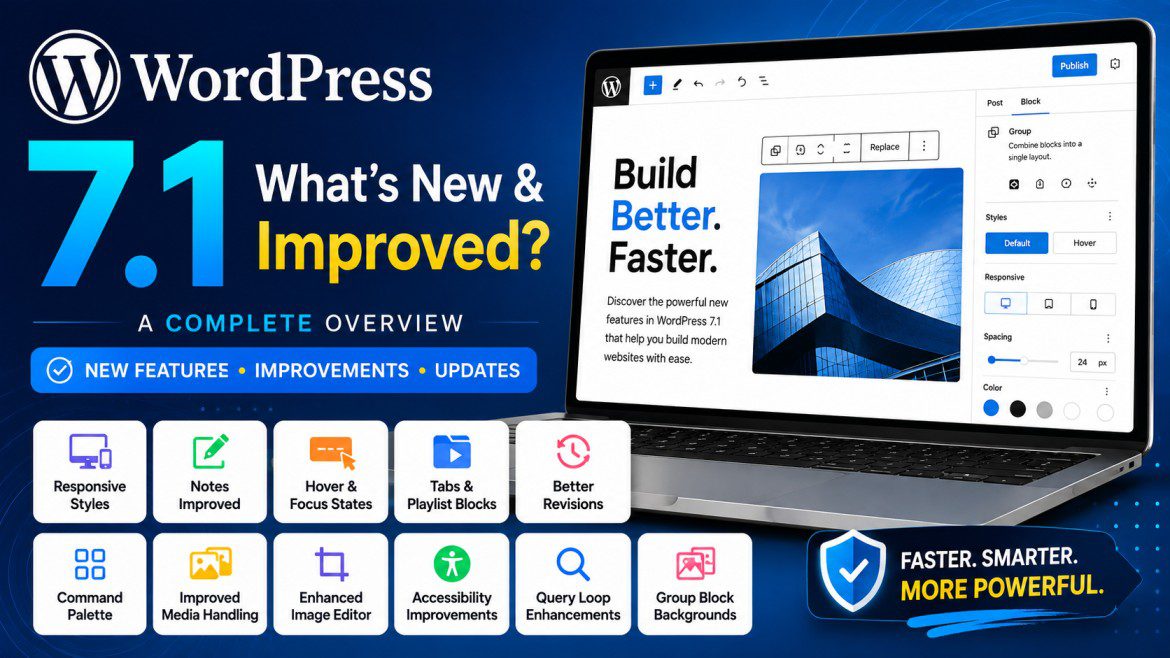
WordPress 7.1 Is Here: A Detailed Look at All the New Features and Improvements
WordPress 7.1 has officially arrived, bringing a collection of improvements that make the block editor more flexible, improve content collaboration, enhance media handling, and provide developers with better tools for building modern WordPress websites.
Rather than introducing one massive feature that changes the way WordPress works, version 7.1 focuses on refining the editing experience and expanding functionality that users and developers have been requesting for some time.
Some of the most notable additions include responsive block styling, improved Notes and revisions, new Tabs and Playlist blocks, better hover and focus styling controls, improvements to the Icon block, enhanced image processing, accessibility updates, and several quality-of-life improvements throughout the editor.
In this article, we’ll take a detailed look at the biggest changes in WordPress 7.1, explain how they work, and discuss how they can benefit everyday WordPress users.
WordPress 7.1 at a Glance
Here’s a quick overview of the major improvements included in WordPress 7.1:
| Feature | What’s New |
|---|---|
| Command Palette | Improved suggestions and navigation |
| Post Editor | Admin Bar is available again |
| Responsive Styles | Different styles for desktop, tablet, and mobile |
| Notes | Rich text formatting and better collaboration |
| Revisions | Improved revision details and sharing |
| Button States | Hover, focus, and active styling |
| Tabs Block | New native content tabs |
| Playlist Block | Create audio playlists |
| Icon Block | Better customization and icon extensibility |
| Media | Improved client-side image processing |
| Image Editor | Better crop, rotate, zoom, and flip controls |
| Accessibility | Mark images as decorative |
| Query Loop | Exclude the current post |
| Group Block | Improved background image controls |
Let’s look at each improvement in detail.
Improved Command Palette
The Command Palette has become an increasingly useful feature in the WordPress editor, and WordPress 7.1 makes it easier to use.
You can open the Command Palette with:
- Ctrl + K on Windows
- Command + K on macOS
Once opened, WordPress now displays useful suggestions instead of presenting an almost empty search interface.
As you begin typing, WordPress filters the available commands and lets you quickly jump to different sections of the dashboard or editor.
Why this matters
For users who spend a lot of time managing WordPress websites, this can save time by reducing the number of clicks needed to reach common actions.
Instead of navigating through multiple menus, you can simply search for the command you need.
This improvement is especially useful for:
- WordPress administrators
- Content editors
- Developers
- Users managing large websites
The Admin Bar Returns to the Post Editor
One of the smaller changes in WordPress 7.1 is the return of the WordPress Admin Bar inside the post editor.
When editing a post or page, the admin bar is now visible at the top of the screen.
Although this might seem like a minor update, it improves navigation by allowing users to quickly access other parts of the WordPress dashboard without leaving the editor.
For people who frequently switch between editing content and managing other areas of their site, this small change can make the editing experience feel more seamless.
Responsive Styling Comes to the Block Editor
Responsive design has always been essential for modern websites, but WordPress users often had to rely on custom CSS or third-party page builders to fine-tune how blocks looked on different devices.
WordPress 7.1 takes a significant step forward by introducing responsive styling controls.
Users can now define styles specifically for different screen sizes, including:
- Desktop
- Tablet
- Mobile
For example, you might want a button to use a dark text color on desktop but a different color on mobile.
Instead of writing custom media queries, you can select the appropriate device view and change the styling directly from the block editor.
Practical use cases
Responsive styling is particularly useful for adjusting:
- Text colors
- Background colors
- Spacing
- Padding
- Typography
- Other supported block styles
This makes the native WordPress editor more capable of handling responsive design without requiring as much custom CSS.
For theme developers, responsive styles can also be integrated into modern theme configurations, making it easier to create themes that adapt across different devices.
Notes Receive Important Collaboration Improvements
The Notes feature in WordPress 7.1 receives several improvements that make collaboration more practical.
You can select a specific portion of text and attach a note directly to it.
This is useful when working with:
- Clients
- Editors
- Content writers
- Marketing teams
Instead of sending a separate email saying “Please rewrite this paragraph,” you can highlight the paragraph and leave a note directly inside the editor.
Rich Text Formatting
Notes now support richer formatting.
You can:
- Make text bold
- Use italics
- Add links
- Mention team members
These additions make Notes much more useful for detailed editorial feedback.
For example, an editor can highlight a sentence and write:
Urgent: Please verify this information before publishing.
The formatting makes the feedback easier to understand and act upon.
Better Revision Management
WordPress has always stored revisions of posts and pages, but WordPress 7.1 improves how revision information is presented.
Users can more easily review previous versions of their content and inspect changes made over time.
Another useful improvement is the ability to share a revision using its URL.
This makes it easier for editors or clients to review a particular version of a post without having to explain exactly which revision they should open.
For teams that regularly review content before publication, this can simplify the approval process.
Hover, Focus, and Active Styles for Buttons
One of the most welcome design improvements in WordPress 7.1 is expanded support for interactive styling states.
Previously, creating different styles for a button’s hover state often required custom CSS.
Now, the block editor provides controls for states such as:
- Default
- Hover
- Focus
- Focus Visible
- Active
For example, you can create a red button for its normal state and configure it to change to another color when a visitor hovers over it.
This gives designers much more control directly inside the editor.
Benefits
This feature is especially helpful for:
- Landing pages
- Call-to-action buttons
- Navigation buttons
- Forms
- Interactive blocks
It also reduces the need to add small custom CSS snippets for simple hover effects.
The New Tabs Block
WordPress 7.1 introduces a native Tabs block.
This is one of the most visible additions in the release because tabs are commonly used on modern websites.
The Tabs block allows you to organize content into separate panels that visitors can switch between.
Each tab can contain other WordPress blocks, including:
- Images
- Text
- Buttons
- Lists
- Galleries
- Other nested blocks
Common use cases
The Tabs block works well for:
- Product descriptions
- Specifications
- FAQs
- Service details
- Pricing comparisons
- Tutorials
- Documentation
The block also includes styling controls for:
- Background colors
- Text colors
- Alignment
- Padding
- Spacing
Previously, many websites required a dedicated tabs plugin or a page builder module for this functionality. Having it available in WordPress Core is a useful addition.
The New Playlist Block
Another new block in WordPress 7.1 is the Playlist block.
The Playlist block allows users to upload multiple audio files and display them as a single playlist.
Each track can include information such as:
- Artist name
- Album name
- Track image
- Track number
- Duration
Users can also choose which metadata appears in the playlist.
Who will benefit?
This block is particularly useful for:
- Musicians
- Podcasters
- Audio publishers
- Educational websites
- Churches
- Media organizations
Instead of installing an additional audio playlist plugin, many websites can now create playlists using a native WordPress block.
Improvements to the Icon Block
The Icon block also receives improvements in WordPress 7.1.
Users continue to have extensive styling controls, including:
- Icon size
- Width
- Background color
- Icon color
- Padding
- Borders
- Border radius
However, there is also an important developer-focused change.
WordPress 7.1 expands the icon system so plugins can register additional icon collections through the SVG Icon API.
This means the icon library can become more extensible over time.
For users, this could eventually result in a broader range of icons being available through plugins without each plugin having to create its own separate icon picker.
Better Client-Side Image Processing
Media handling is another important focus of WordPress 7.1.
Modern smartphones and cameras create increasingly large image files. Processing these files can place significant load on web servers.
WordPress 7.1 improves client-side image processing, allowing supported image operations to happen in the browser before the image is uploaded.
Why this is useful
Processing images before upload can help:
- Reduce server workload
- Improve upload workflows
- Handle modern image formats more efficiently
Websites that frequently upload large numbers of images may benefit the most from these improvements.
A Better Image Editing Experience
WordPress 7.1 also improves the built-in image editor.
Previously, image editing controls were relatively basic.
The updated editor provides a more complete interface for making common adjustments.
Users can now more easily:
- Crop images
- Rotate images
- Flip images
- Zoom in
- Adjust positioning
- Change aspect ratios
For example, you can choose a square crop, reposition the image, and apply the changes without leaving WordPress.
This won’t replace professional image editing software, but it makes basic image adjustments much more convenient for everyday content publishing.
Mark Images as Decorative
Accessibility receives attention in WordPress 7.1 with an option to mark images as decorative.
Not every image on a website conveys meaningful information.
For example, a decorative background image or visual divider does not necessarily need to be described to someone using a screen reader.
By marking an image as decorative, WordPress can treat it appropriately so assistive technologies don’t announce unnecessary information.
This is a small setting, but it helps website owners create more accessible content.
Query Loop Can Exclude the Current Post
The Query Loop block receives a practical improvement.
When using a Query Loop to display related posts inside a blog article, it’s usually undesirable for the current article to appear in its own related-post list.
WordPress 7.1 adds an option to exclude the current post.
This means you can create related-post sections more easily without needing custom queries or additional code.
Although it’s a relatively small feature, it solves a common use case for bloggers and publishers.
Better Background Controls for Group Blocks
Group blocks gain improved background controls in WordPress 7.1.
You can place multiple blocks inside a Group and apply a background image to the entire section.
You can then customize:
- Text colors
- Background images
- Gradient overlays
- Overlay transparency
This makes it easier to build sections such as:
- Hero banners
- Call-to-action sections
- Promotional content boxes
- Feature sections
without relying on additional layout plugins.
What WordPress 7.1 Does Not Include
During the development cycle, there was discussion around broader collaboration features, including real-time editing.
However, WordPress 7.1 does not introduce full real-time collaboration similar to Google Docs.
Instead, this release focuses on improving asynchronous collaboration through Notes and revisions.
Real-time collaborative editing remains an area of future development.
Should You Update to WordPress 7.1 Immediately?
As with every major WordPress release, it’s important to approach updates carefully.
If you run a relatively simple website with:
- A modern theme
- Regularly updated plugins
- No custom functionality
the update is likely to be straightforward.
However, if your website relies on:
- WooCommerce
- Custom themes
- Custom plugins
- Page builders
- Membership plugins
- LMS platforms
- Custom blocks
- Third-party integrations
it’s a good idea to test the update first.
Recommended update process
Before updating to WordPress 7.1:
- Take a complete backup of your website.
- Create a staging copy if your hosting provider offers one.
- Update WordPress on the staging site.
- Test:
- Homepage
- Navigation
- Mobile layout
- Contact forms
- Login
- Checkout
- Post editor
- Custom post types
- Any business-critical functionality
- If everything works correctly, update the live website.
This approach minimizes the risk of unexpected compatibility issues.
WordPress 7.1 is best described as a refinement release rather than a complete overhaul.
The release focuses on making existing workflows smoother while adding several features that reduce the need for third-party plugins or custom CSS.
The most significant improvements for everyday users are likely to be:
- Responsive block styling
- Hover and focus state controls
- The new Tabs block
- The new Playlist block
- Improved image editing
- Better Notes and revision workflows
- Enhanced media handling
For developers, the expanded styling system, SVG Icon API, and editor-related changes provide a stronger foundation for building modern WordPress themes and plugins.
Overall, WordPress 7.1 continues the platform’s gradual evolution toward a more capable, flexible, and user-friendly block editor while maintaining the stability that millions of websites rely on.